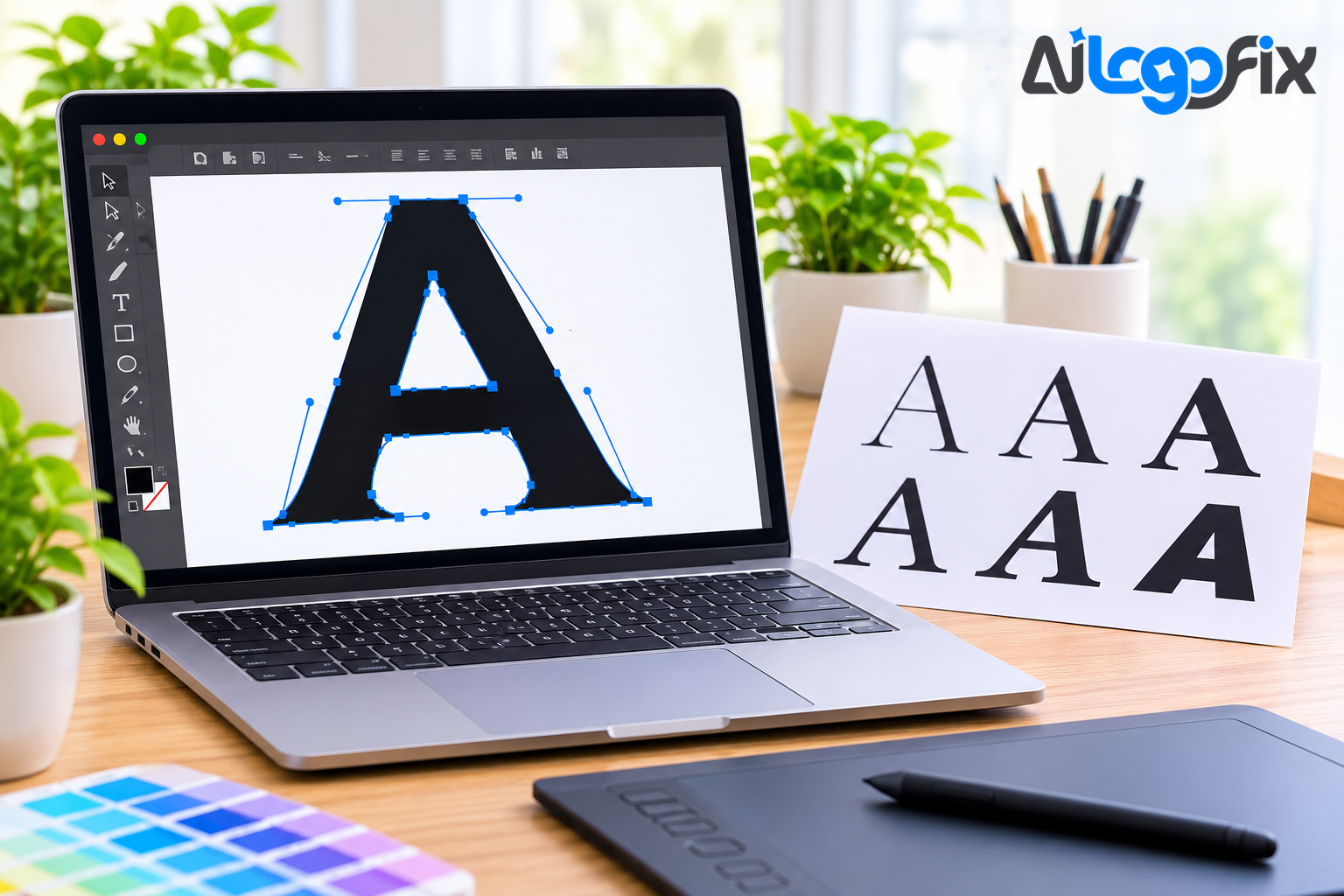
Your logo's lettering lives in a font file. Your laser cutter, your embroidery machine, and your website all want something else: the letters as vector paths. That gap — between a font file and editable outlines — is exactly what a TTF to SVG converter closes. It takes the glyph outlines stored inside a TrueType font and turns them into standalone SVG paths you can edit, recolour, scale, and cut.
Done right, the result is beautiful: your exact letterforms as clean geometry, usable anywhere. Done wrong, you get a broken font file, a licensing problem, or an SVG no browser will use. This guide explains what TTF to SVG conversion actually does, the easiest method for each situation, and the traps to avoid.
What a TTF file really is
TTF stands for TrueType Font, a font format developed by Apple and Microsoft. A TTF file is not a picture of letters — it already stores each character as vector outlines, plus the spacing, kerning, and metrics that make text look right. That is why text in a TTF stays sharp at any size: the outlines are mathematics, not pixels.
Converting TTF to SVG extracts those glyph outlines and saves them as SVG path data — the same path syntax that draws logos and icons. There are two different conversions, and confusing them causes most of the frustration:
- Whole font to SVG font: the entire font, all its glyphs, saved as one SVG font file. This was once a way to embed fonts on the web, but SVG fonts are poorly supported in modern browsers, and this route is mostly obsolete.
- Individual glyphs to SVG files: one letter, one number, or one symbol, exported as its own standalone SVG. This is the conversion most people actually want — a letter as a graphic you can edit, animate, cut, or stitch.
If your goal is a logo, an icon, a monogram, or lettering for a machine, you want the second one: individual glyphs as SVG paths.
The easiest method: FontForge (free)
FontForge is the tool every conversion guide recommends first, and for good reason: it is free, open-source, runs on Windows, macOS, and Linux, and it understands fonts properly — including subsetting glyphs, editing individual letters before export, and keeping font metrics intact through the conversion.
To export the whole font as SVG: open the TTF in FontForge, then go to File, Generate Fonts, choose SVG as the output format, and save. To export individual glyphs — the useful case — open the font, select the glyph you want, then go to File, Export, and choose SVG as the format. Each letter becomes its own clean SVG file with the outline as editable paths.
FontForge also works from the command line, which is the easiest route when you need to convert a font the same way more than once. A single command opens the font and generates the SVG, and the same command can be scripted for a whole folder of fonts. For developers and production work, the FontTools Python library offers the same kind of programmatic control, including its ttx command-line tool for converting font data to XML.
The advantage of FontForge over a quick online converter is control. You can delete the glyphs you do not need before export, fix a letter's outline, and check the result before it leaves your machine. For a logo or a production file, that control is worth the ten minutes it takes to install the program.
The one-click method: online converters
If you need one letter converted once, an online converter is faster. Tools such as Online Font Converter, FontConverter.io, and Convert.Guru let you upload a TTF file and download the SVG version in the browser, with no software to install. Convert.Guru processes the file right in your browser, so the font never leaves your device — a meaningful detail if the font is licensed or the lettering is a client's brand asset.
Online converters are the right choice for a quick, one-off conversion: a single monogram letter, a number for a sign, a symbol for an icon set. They are the wrong choice for a whole font, for production files, or for anything where you need to check and fix the outlines — they give you what they give you, with no editing step in between.
What to do with the SVG paths
Once a glyph is an SVG, it behaves like any other vector artwork:
- Logo lettering: convert the text in your logo to outlines so the logo never depends on a font being installed. A printer or sign shop can open the file and see the exact letterforms, with no substitution and no licensing question.
- Icons and monograms: a single letter makes a clean app icon, favicon, or social avatar, scalable from 16 pixels to a billboard.
- Laser cutting, vinyl, and embroidery: machines follow paths, not fonts. A letter as an SVG path is a cut line or a stitch path. (For embroidery specifically, note that a converted font still needs digitizing — the SVG gives the machine the shape, not the stitch plan.)
- Web animation: SVG paths can be animated, drawn on stroke by stroke, or recoloured with CSS — effects a font file cannot do.
If the lettering is part of a logo that also needs other fixes — a redrawn mark, a colour change, a layout correction — the logo modify service handles the artwork around the lettering, and the raster to vector service rebuilds pixel-based logos as clean vectors from $10. And if your artwork started as a hand-drawn sketch, the sketch to vector service turns it into the same production-ready vector.
The traps: licences, browsers, and wrong formats
Three traps catch almost everyone who converts fonts for the first time.
The licence trap. A font's licence governs what you may do with it. Converting a font to SVG paths and using the letters in a logo is normally fine when you hold a licence for the font — but redistributing the converted font, embedding it in a product, or handing the SVG font file to someone else can break the licence. Commercial licences in particular often forbid integrating a converted font into other software or products. Check the licence before you convert, not after. When in doubt, convert only the glyphs you need, for your own project, and do not share the font file itself.
The browser trap. SVG fonts — the whole-font format — are barely supported in modern browsers. If you converted a font to use it as a web font, you chose the wrong output: for web use, convert the TTF to WOFF2 instead, which can reduce file size by up to 50 percent and is the format browsers actually want. SVG is the right output when the glyph is a graphic; WOFF2 is the right output when the glyph is text.
The wrong-tool trap. A TTF to SVG converter extracts outlines; it does not improve them. If the source font is low quality, or the letter you need is damaged in the font file, the SVG will carry the same flaws. A professional redraw fixes the letterform; a converter only copies it.
How to check your converted SVG
Before you use a converted glyph, check it the way you would check any vector file:
- Open it in a vector editor and look at the paths. Clean glyphs have smooth curves and a sensible number of anchor points. Thousands of points on a single letter means something went wrong.
- Zoom in. The edges should stay sharp at any size — that is the whole point of a vector.
- Check the letter is closed. An open path will not fill properly and will not cut correctly on a machine.
- Test it where it will be used: in the browser, in the cutter software, or on the embroidery machine. A file that opens is not the same as a file that works.
FAQ
Is FontForge really free?
Yes. FontForge is free, open-source font editing software, available for Windows, macOS, and Linux. It is the tool most conversion guides recommend for TTF to SVG work, because it handles both whole-font export and individual glyph export, and it lets you edit outlines before converting.
Can I convert a TTF to SVG online without installing anything?
Yes. Online converters such as Online Font Converter, FontConverter.io, and Convert.Guru upload a TTF and return an SVG in the browser. They are best for one-off conversions of a single letter or symbol; for production work or whole fonts, FontForge gives you more control.
Why does my SVG font not work in the browser?
SVG fonts are poorly supported in modern browsers. If you need a font for the web, convert the TTF to WOFF2 instead. Use SVG output when the glyph is a graphic — a logo letter, an icon, a cut path — not when it is text.
Is it legal to convert a font to SVG?
It depends on the font's licence. Converting glyphs for your own licensed use — such as outlining the lettering in your own logo — is normally fine. Redistributing the converted font, or integrating it into another product, often is not. Always check the licence first.
What is the difference between converting a font and outlining text?
Outlining text in a design program converts the specific words in your document into paths, using the font you have installed. Converting a TTF to SVG extracts the glyph outlines from the font file itself. The result is similar — letters as paths — but the font conversion gives you the raw glyphs to reuse anywhere.
Conclusion
TTF to SVG conversion is a small job with an outsized payoff: it turns lettering from something your software renders into something you own as geometry. FontForge is the best free method when you want control, online converters are the fastest for a one-off letter, and the right output depends on the job — SVG paths for graphics and machines, WOFF2 for the web. Check the licence, check the paths, and the letters you convert will work everywhere your brand does.
Need your lettering as clean vector paths?
Our specialist team converts and redraws logo lettering as precise vector outlines — AI, EPS, SVG, and PDF — so your text stays exact on every printer, cutter, and screen. Every order includes refinements within your selected package and agreed brief, and full commercial rights.
Get Your Lettering as Vector Paths
Questions first? Message the team — send your font or your logo and we will tell you the cleanest way to convert it, for free.