
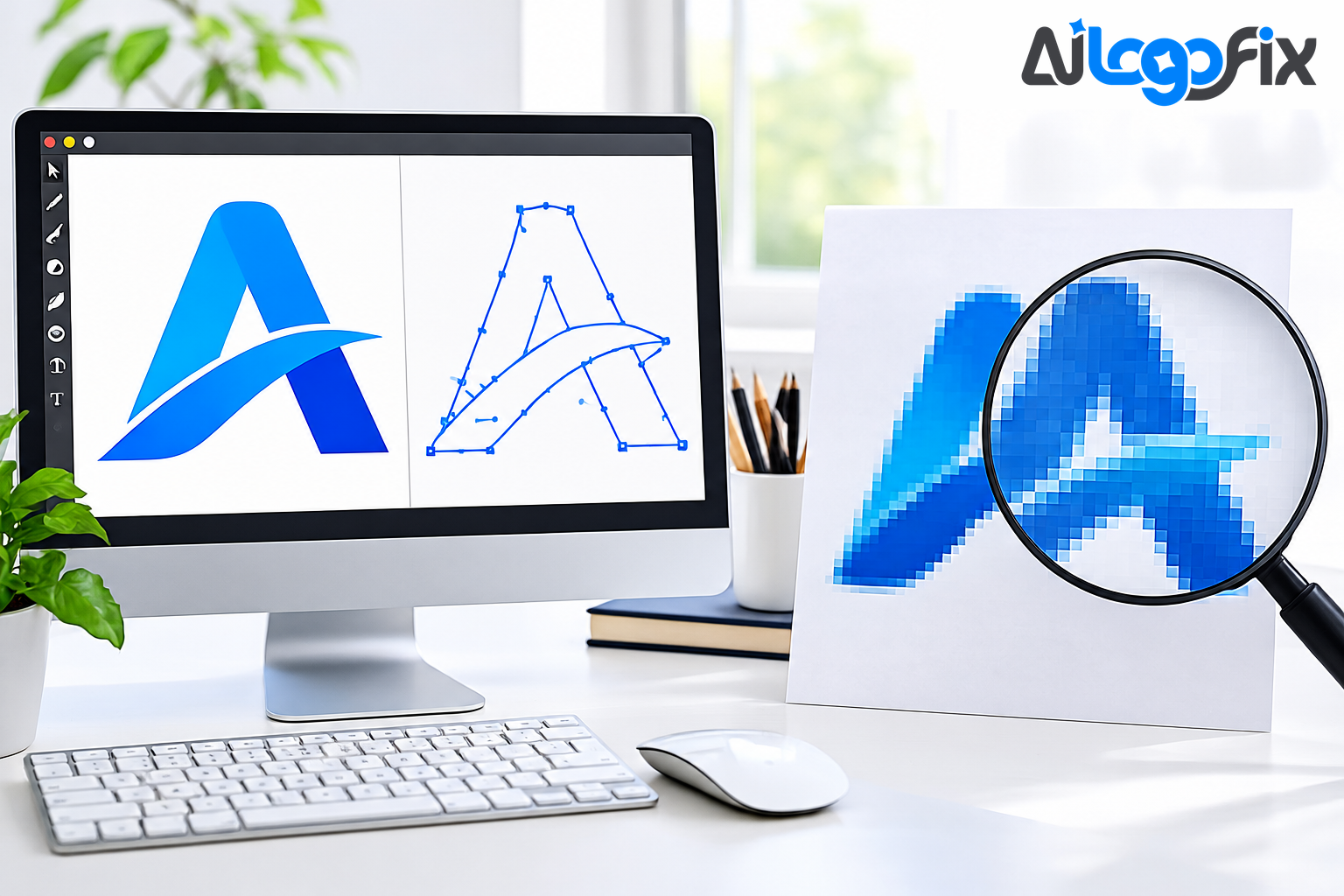
You have seen both outcomes. One logo uploads to a converter and comes back crisp, clean, and ready to print. Another — sometimes one that looks just as good on screen — comes back as a lumpy, posterised mess with wobbly edges and a thousand tiny shapes. It feels random, but it is not. Vectorizing is a specific operation with a specific requirement, and once you know it, you can predict the result before you upload anything.
The short version: tracing follows edges. An image vectorizes well when it has clear boundaries between a small number of areas, and badly when it does not. Everything else — resolution, file format, which tool you use — matters less than that one fact.
Tracing follows edges — the one rule
A tracer's job is simple to describe: find the boundary between one area of colour and the next, and fit a smooth curve to it. That is the whole job, and every limit of tracing is that one sentence applied to a specific case.
Where the boundary is obvious — the edge of a letter, the outline of an icon — the tracer will agree with you and the result will be clean. Where you would hesitate, the tracer guesses, picking a brightness threshold and treating everything on one side as inside. Where you would say "there isn't really a line there at all", it invents one anyway, because inventing one is the only thing it can do.
That is why two images that look equally good to your eye can behave completely differently — your eye sees meaning; the tracer sees edges. A photo of a face looks clear to you, but to a tracer it is a smooth ramp of skin tones with no line where cheek becomes jaw. Any line it draws there is arbitrary — and across a whole face, arbitrary lines become the flat bands of colour and sharp steps of a posterised mess.
What vectorizes well
- Logos and wordmarks: Why it works: Flat shapes, sharp edges, few colours
- Lettering and type: Why it works: Definite boundaries around every letterform
- Signatures and ink drawings: Why it works: High-contrast strokes on a plain background
- Icons and pictograms: Why it works: Simple geometric shapes with clear outlines
- Flat illustrations: Why it works: Solid colour areas separated by clean lines
- Line art and technical drawings: Why it works: Pure edges — exactly what a tracer reads
The left column has one thing in common: definite boundaries. A logo is a set of solid shapes. A letter is a closed outline. A line drawing is edges and nothing else. Give a tracer that, and it has something real to follow.
What vectorizes badly — and why
Photographs. A photograph has no edges in the sense a tracer needs. Skin shades gradually into shadow across dozens of pixels; there is no line where one tone ends and the next begins. Ask a tracer to vectorize it and you get the poster effect: flat bands of colour with hard steps between them. Adobe's own Image Trace guidance is blunt — auto-tracing photographs to make them infinitely scalable does not work. The shapes grow larger when you enlarge the result and become visible, just like enlarged pixels. Photographs remain fundamentally resolution-dependent, regardless of vector conversion.
Gradients and soft colour transitions. Image Trace cannot generate gradient fills. It converts smooth transitions into neighbouring shapes filled with discrete solid colours — an approximation of a gradient, never a true one.
Texture: fur, hair, foliage, fabric. Texture is thousands of tiny edges pointing in every direction. A tracer dutifully follows all of them, producing thousands of tiny shapes — a bloated file that is slow to open, painful to edit, and useless for print.
Geometric precision. Logos and symbols containing precise geometric elements — triangles, hexagons, perfect circles, straight lines — should be traced manually. Humans recognise these shapes even in degraded files, but tracing software sees collections of pixels and produces approximate curves rather than mathematically perfect shapes.
Low-resolution screenshots and heavily compressed JPGs. Below about 300 pixels on the long side, there is not enough of an edge left to follow. The boundary of a letter might be two or three pixels wide, and the tracer cannot tell where the letter ends and the background begins. Heavy JPEG compression adds blocky artefacts that get traced into the final output as phantom shapes.
The four things that actually ruin an otherwise good source
Assuming your image is the right kind, these are what go wrong, in order of frequency.
1. Resolution. The most common killer. A tiny, blurry source cannot be rescued by any converter at any price. Adobe's Image Trace even warns when a source exceeds 1,500 pixels — but the real problem is at the other end of the scale, where there are not enough pixels to describe an edge.
2. Compression artefacts. A heavily compressed JPG carries blocky squares and halos around every edge, which the tracer reads as real shapes. Save your source as PNG, TIF, or PSD before tracing, and avoid re-saving a JPG over and over.
3. Low contrast. Contrast matters more than resolution. A dark logo on a dark background, or grey text on white with soft anti-aliasing, gives the tracer no clean threshold. Raising contrast before tracing often helps more than increasing size.
4. Cluttered backgrounds. A logo photographed on a desk or a sign shot at an angle — the tracer cannot tell which edges are your design and which are the background. Crop tightly and flatten the background first.
How to prepare an image before vectorizing
A few minutes of preparation can be the difference between a usable SVG and an output that needs extensive manual correction: crop tightly to the subject; increase contrast to clarify edges, especially for grey or faded artwork; remove background clutter or make the background one uniform colour; reduce colours if the design allows — fewer colours mean simpler shapes and fewer nodes; and save a lossless copy (PNG or TIFF) before tracing, so no new JPEG artefacts are added. None of this will rescue a photograph or a 200-pixel blurry logo — but for a decent source, preparation is what separates a clean trace from a messy one.
Auto-trace vs manual redraw: where the line is
Auto-trace is a fair first try for flat, high-contrast logos with solid shapes and a few clean colours. If the result has crisp edges, a low node count, and separate editable colours, you are done. But if the source is small, blurry, photographic, or gradient-heavy, automated tracing is unlikely to reproduce clean brand geometry — and re-running the converter usually wastes more time than fixing the result by hand. The honest rule: if your only copy is small, blurry, photographic, or gradient-heavy, skip the converters. A human designer rebuilds the artwork by recognising shapes, matching fonts, and drawing clean curves — the things software cannot infer from pixels. That is why a manual redraw costs more than a free trace, and why it is worth it for anything that will be printed, cut, or put on a sign.
How to tell if your "vector" is real
A real, usable vector logo passes four checks:
1. Editable paths, not an embedded image. Open it and click a shape. You should be able to select and move individual paths, not just one flat picture. Note the trap: SVG permits a raster PNG or JPEG inside its `<image>` element, so a file can carry a `.svg` extension while the artwork inside still pixelates. 2. A low node count. Clean curves need a handful of anchor points, not thousands. A bloated trace is hard to edit and slow everywhere downstream. 3. Crisp edges at any size. Scale it up 10x — it should stay sharp. 4. Separate, editable colours. Each colour its own shape, ready to recolour.
If your file fails these checks, it is not a production vector — whatever the extension says.
What to do when your image will not vectorize
First, check which group your image is in. If it is a logo, icon, or line drawing with a decent source, try the preparation steps above and run it through a tracer once. If the result is close but the edges need work, finishing it in Illustrator is often faster than re-running the converter. If it is a photograph, a gradient-heavy design, or a tiny blurry source, stop fighting the tool — the right move is a manual rebuild. AiLogoFix's Raster to Vector service hand-redraws your image as clean vector paths — AI, EPS, SVG, and PDF — from $10, with refinements within your selected package and agreed brief. And if your problem image is an AI-generated logo, with warped text and soft edges no tracer can fix, the AI-Generated Logo Fix service rebuilds it properly by hand, from $20.
FAQ
Why does my logo vectorize badly when it looks fine on screen?
Because your eye sees meaning and the tracer sees edges. A logo that looks fine at small size may have soft edges, low contrast, gradients, or photographic elements that give the tracer nothing clean to follow.
Does higher resolution make vectorizing better?
Up to a point. Below about 300 pixels on the long side there is not enough edge left to follow, and raising contrast often helps more than raising size. But resolution cannot fix a photograph or a gradient.
Can a photograph be turned into a vector?
Not faithfully. A tracer turns a photo into flat bands of colour with hard steps — the poster effect. If you need a photograph as a vector for a large print, the real answer is to have an illustrator redraw it.
Why does my SVG file still look pixelated?
Probably because it is not a real vector. SVG files can contain an embedded raster PNG or JPEG, which still pixelates when enlarged. Open the file and check you can select individual paths — if the whole design selects as one flat picture, it was never vectorized.
Is manual tracing always better than auto-trace?
For logos, geometric shapes, and anything going to print, yes. Auto-trace is fine as a first try for simple, flat, high-contrast art. For precise geometry, small or blurry sources, and production work, a human redraw produces the clean paths a printer needs.
Conclusion
One image vectorizes perfectly and another does not because tracing is an edge-following operation, not a quality setting. Clear boundaries, high contrast, flat colours, and a clean source trace well. Photographs, gradients, texture, and tiny blurry files do not — and no converter can find an edge that is not in the pixels. The practical skill is knowing which group your image is in before you waste an afternoon: prepare the good ones properly, and hand the impossible ones to a human designer who can rebuild what the pixels never contained.
---
Have an image that will not vectorize? Our specialist team can help.
Get It Redrawn by Hand — Clean Vector Paths, From $10
If your logo or artwork keeps coming back from converters as a lumpy mess, our designers will rebuild it by hand as a production-ready vector — AI, EPS, SVG, and PDF included. Real shapes, real fonts, real colours, and refinements within your selected package and agreed brief.
Questions first? Message the team — send us the image and we will tell you honestly whether it traces or needs a rebuild, for free.
---