
AI-Generated Business Card to Print: Vector, Bleed and CMYK Setup
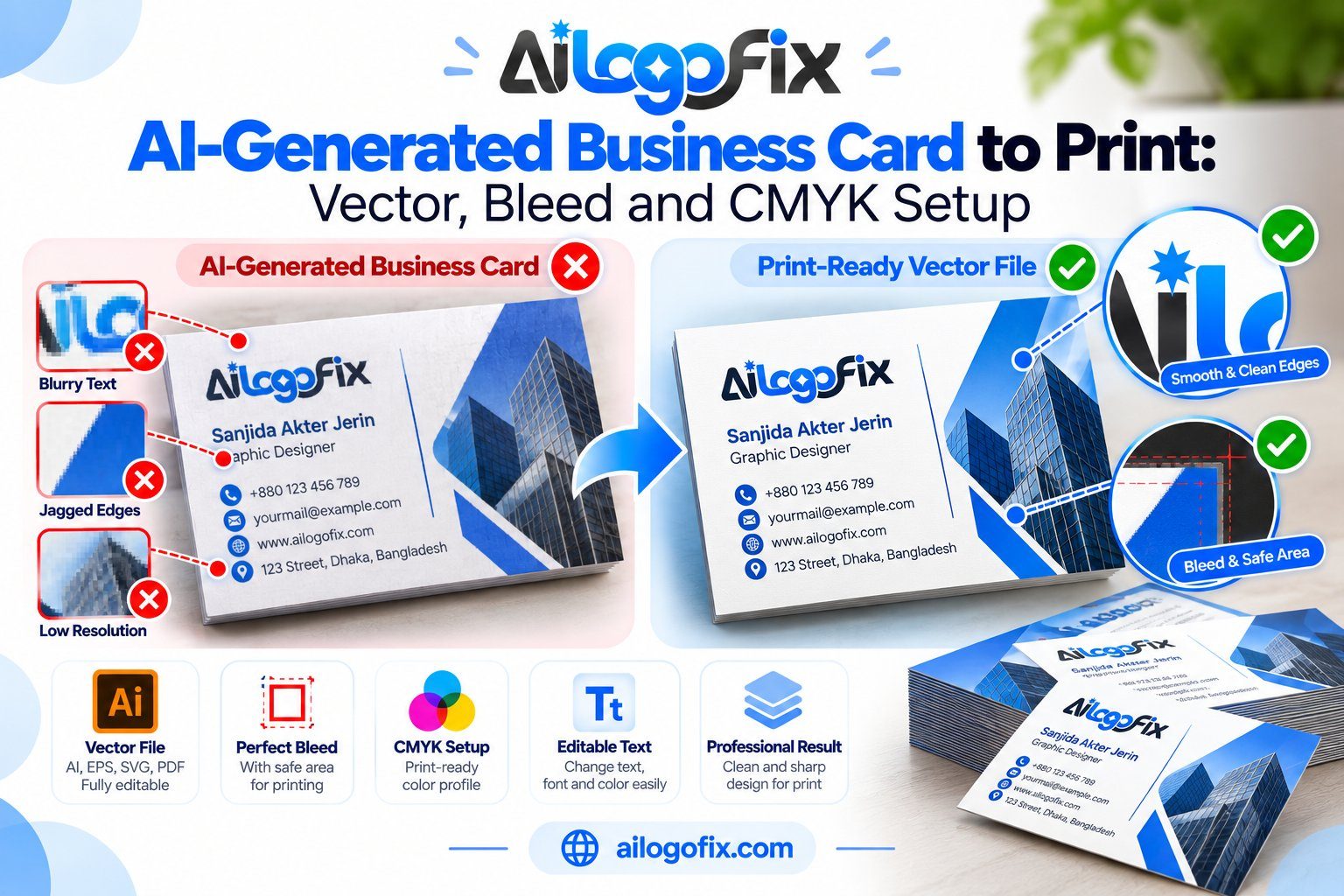
AI can mock up a beautiful business card in seconds — but a business card is a precision print product. At 3.5 × 2 inches, every error is magnified: text too close to the edge gets trimmed, RGB colors shift, and AI-rendered contact details are often wrong. Here is how to take an AI business card print design from screen mockup to a card you can hand out with pride.
In This Guide
- Why Business Cards Punish Shortcuts
- Step 1: Set Up the Document at Exact Size
- Step 2: Retype Every Contact Detail
- Step 3: Convert to CMYK and Fix Colors
- Step 4: Use a Vector Logo
- Step 5: Front and Back Setup
- Step 6: The Pre-Send Checklist
- FAQs
- AI Business Card Print: Complete FAQ
- 7 AI Business Card Print Mistakes (and How to Fix Each)
- Deep Dive: Typography for AI Business Card Print
- When to Hire a Designer for AI Business Card Print
- AI Business Card Print Preflight Checklist
Quick answer: Rebuild the card at exact print size (3.5 × 2 in + 3mm bleed), convert to CMYK, retype all contact details as real text, keep everything inside the safe margin, use a vector logo, and export a print-ready PDF. Never print the raw AI image.
Why Business Cards Punish Shortcuts
A business card is small, handled closely, and compared against every other card your contact has received. Blurry text, off-center trimming, and dull colors are instantly visible at arm’s length. Printers reject amateur files because the flaws will show — there is nowhere to hide at this size.
Step 1: Set Up the Document at Exact Size
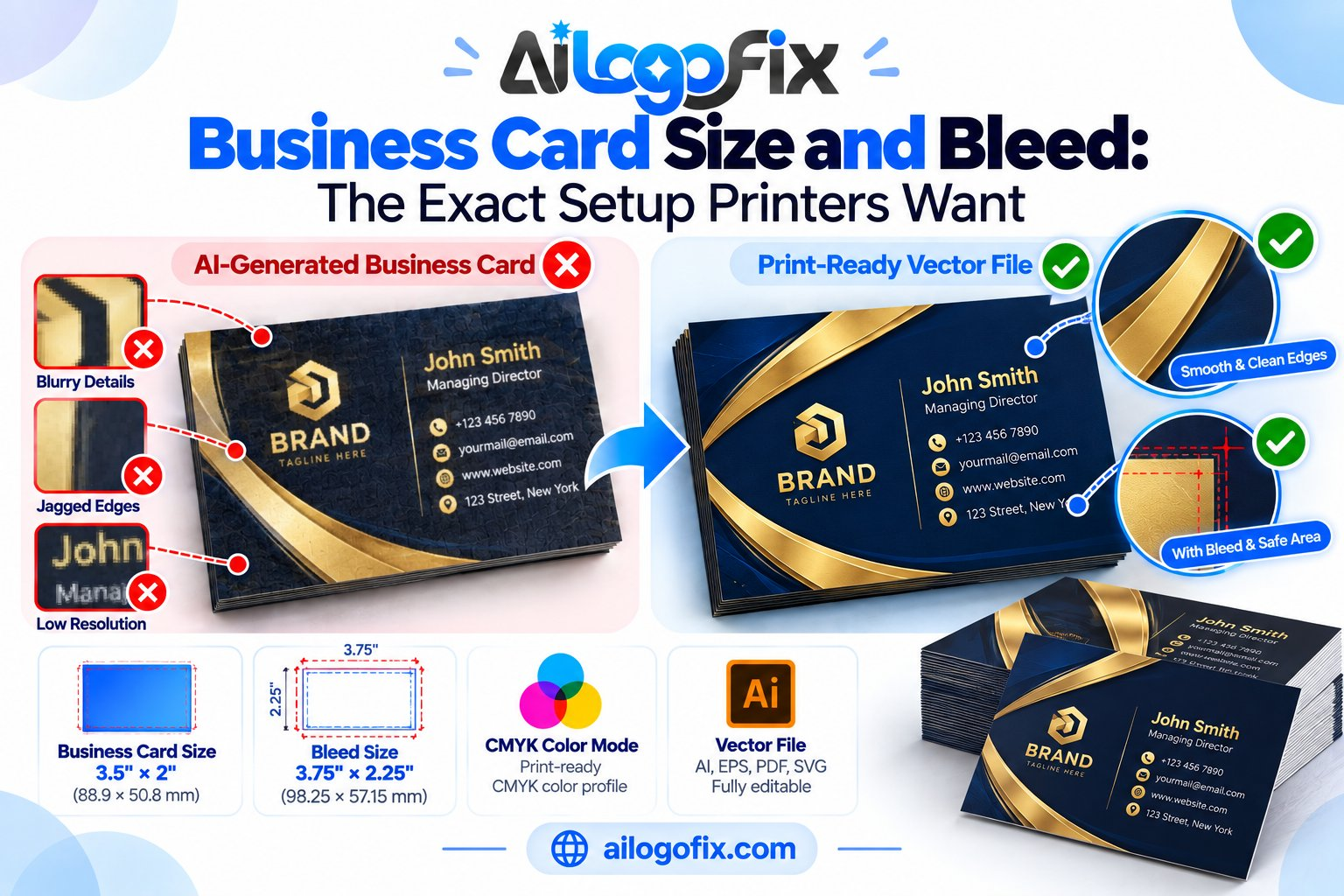
Standard US business card: 3.5 × 2 inches (89 × 51mm). UK/EU standard: 85 × 55mm. Set up your document at trim size plus 3mm bleed on all sides. Work at 300 DPI minimum.
Recreate the AI business card’s layout in this document rather than stretching the AI image — at card size, a stretched 1024px image falls apart. Use the AI mockup as a visual reference for colors, style, and arrangement, then rebuild cleanly.
Step 2: Retype Every Contact Detail
AI-generated text on business cards is notoriously unreliable — wrong phone digits, misspelled names, garbled email addresses. Retype everything as editable text: name, title, phone, email, website, address. Then proofread it three times, and have someone else proofread it once. A thousand printed cards with a wrong phone number is an expensive lesson.
Minimum readable sizes: name 10–12pt, details 7–9pt. Keep all text at least 5mm inside the trim edge (the safe margin).
Step 3: Convert to CMYK and Fix Colors
Business cards live or die on color quality. Convert to CMYK early and adjust while viewing in CMYK — rich brand colors often need manual correction after conversion. For deep backgrounds, use rich black rather than plain K100. Reference: RGB vs CMYK vs Pantone.
Step 4: Use a Vector Logo
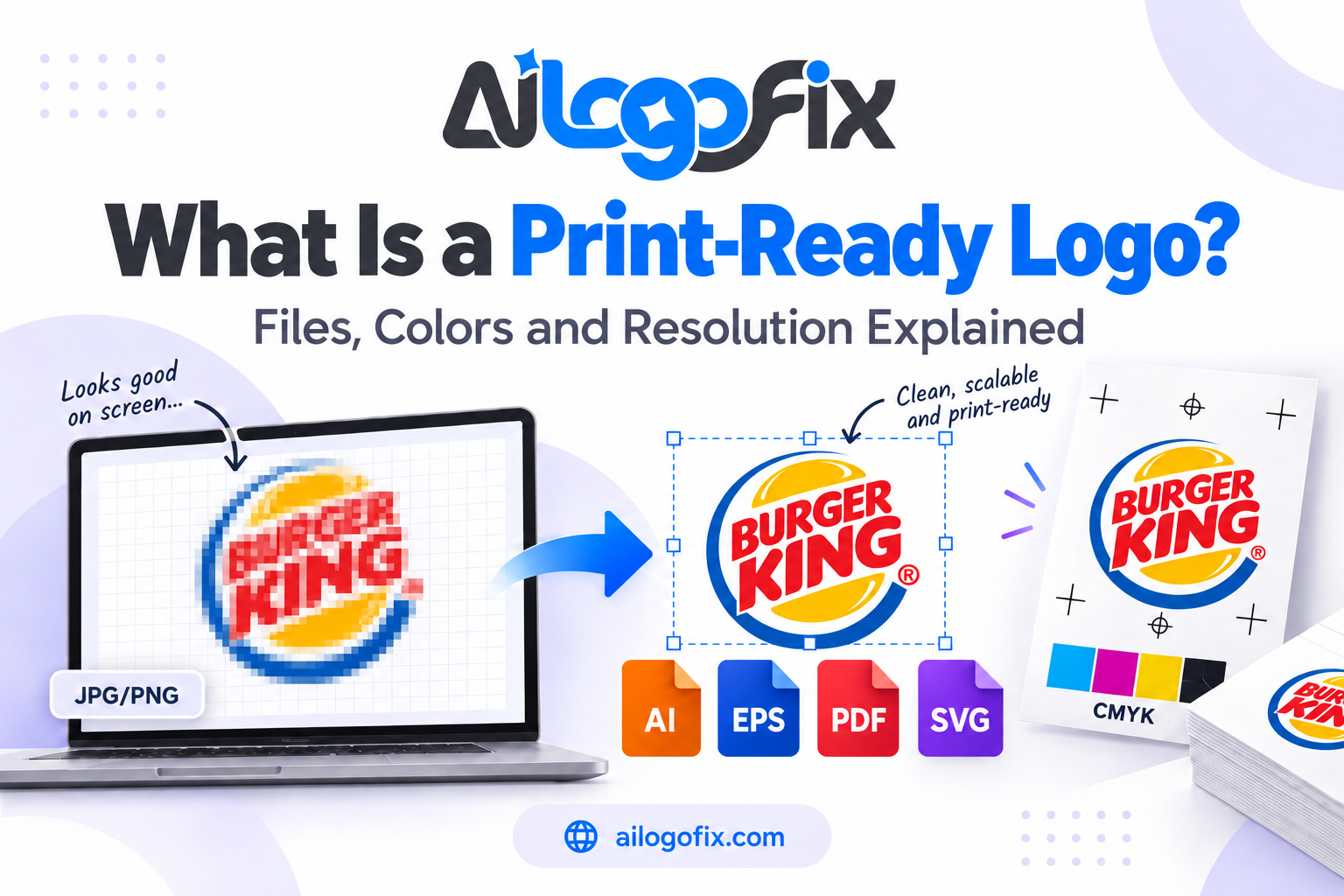
At 3.5 inches wide, a pixelated logo is embarrassingly visible. Place your actual vector logo (SVG/EPS/AI) directly into the layout. If you only have a raster version, get it rebuilt as a vector before designing the card — this single step upgrades the whole result.
Step 5: Front and Back Setup
Design both sides as separate pages/artboards in one file: front (usually logo + name, minimal) and back (contact details, services, QR code). An AI business card mockup usually shows only the front — design the back deliberately instead of leaving it blank. Keep visual consistency — same fonts, same color values, same margins. Export as a single multi-page PDF with bleed and crop marks.
Step 6: The Pre-Send Checklist
Before sending to the printer: all text retyped and proofread; CMYK throughout; 3mm bleed with backgrounds extended; text inside safe margins; vector logo placed; fonts embedded or outlined; export as print-ready PDF.
FAQs
What size should a business card be for print?
3.5 × 2 inches (US) or 85 × 55mm (UK/EU), plus 3mm bleed on all sides, at 300 DPI.
Can I just print the AI-generated business card image?
No. The raw AI output is the wrong size, RGB, low resolution, has no bleed, and its text is unreliable. Rebuild it following the steps above.
How much bleed for business cards?
3mm (0.125 in) on every side is the industry standard.
Why does my printed card look darker than my screen?
Screens are backlit (RGB); print is reflective (CMYK). Convert to CMYK and proof before printing — never judge print color from an RGB screen.
Should I use the front and back of the card?
Yes — the back is free real estate for services, a QR code, or a tagline. The marginal cost is tiny compared to the impact.
What file do printers want for business cards?
A print-ready PDF: CMYK, 300 DPI, 3mm bleed, crop marks, embedded/outlined fonts.
The bottom line: AI gives you the design direction; print precision is human work. Rebuild at exact size, retype everything, mind the bleed — and your AI-inspired card will look like it came from a design studio.
AI Business Card Print: Complete FAQ
Every question designers ask about the ai business card print workflow, answered in depth. Business cards punish shortcuts more than any other print product, so read carefully.
Can I print an AI-generated business card design directly?
No. AI generators produce a pretty picture of a business card, not a printable file. The image is RGB, low resolution, has no bleed, no safe margins, and the contact text is painted gibberish. The ai business card print process rebuilds that concept into a press-ready file: exact 3.5 x 2 inch (or 85 x 55mm) trim size, 3mm bleed, CMYK color, 300 DPI, real editable text, and a vector logo. Until those boxes are ticked, no professional printer will run it.
What is the exact size for business card printing?
US standard is 3.5 x 2 inches (89 x 51mm); the international standard is 85 x 55mm. Both need 3mm (0.125 inch) bleed on every side, so your document should be 91 x 57mm or 3.75 x 2.25 inches including bleed. The ai business card print setup also demands a safe zone: keep all text and logos at least 3 to 5mm inside the trim edge. On a card this small, a 1mm cutter drift is very visible, so margins matter more here than on any larger format.
How do I fix the text on an AI business card?
Retype everything. AI models cannot render real letterforms, so names, titles, phone numbers, and emails come out as convincing-looking nonsense. In your ai business card print rebuild, set all contact details as live text in InDesign, Illustrator, or a similar tool. Use a clean, legible font at 7 to 10pt for body details, never smaller than 6pt. Then outline the fonts or embed them in the PDF so the printer does not need your font files.
Should business cards be CMYK or RGB?
CMYK, always. Business cards are small, so color shifts from blind RGB conversion are brutally obvious. Skin tones go orange, blues turn purple, and grays pick up color casts. The ai business card print color workflow converts deliberately with the printer’s ICC profile, then corrects by hand. For luxury cards, consider Pantone spot colors for the logo or key elements; they reproduce brand colors far more accurately than process CMYK.
What resolution do business card images need?
300 DPI at final placed size, which is easy to get wrong on a card because everything is tiny. A headshot placed at 1 inch wide needs 300 pixels across; many AI portraits are only a few hundred pixels total. The ai business card print rule: check effective DPI after placing every element, and replace anything under 250 DPI. Logos must be vector, never raster, because even slight softness is visible at arm’s length.
Do I need bleed if my card has a white background?
Yes. Even all-white cards need the bleed box defined in the file so the cutter knows exactly where to trim. And most “white” AI card concepts have subtle gradients, textures, or edge shadows that will show white slivers if cut without bleed. The ai business card print standard is 3mm bleed regardless of background. It costs nothing to include and prevents the most common trimming defect.
What paper should I choose for business cards?
350 to 400gsm is the professional standard; anything under 300gsm feels flimsy and cheap. Silk or matte lamination adds durability and a premium feel, while uncoated stock takes pen ink for handwritten notes. The ai business card print file does not change with paper choice, but your color expectations should: uncoated stock absorbs more ink and dulls colors slightly, so ask for a proof on your chosen stock. Standard paper size conventions explain why the 85 x 55mm and 3.5 x 2 inch standards exist.
How do I export a print-ready business card PDF?
Export PDF/X-1a or PDF/X-4 with bleed and crop marks, fonts embedded or outlined, all images CMYK at 300 DPI. Name the file clearly and include both front and back as separate pages or separate files, exactly as your printer requests. The final ai business card print check: open the PDF, confirm the page size equals trim plus bleed, verify no RGB objects remain, and zoom to 400 percent to inspect small text edges. Send a JPG preview alongside for quick visual confirmation.
7 AI Business Card Print Mistakes (and How to Fix Each)
Small format, zero forgiveness. These ai business card print mistakes ruin more cards than any other errors in print.
1. Using the AI mockup as the file. The generator’s output is a picture of a card, not a card file. Fix: rebuild the design at exact trim size with bleed in a real layout tool. The ai business card print workflow starts with correct document setup, never with the AI pixels.
2. Text too small to read. AI concepts use elegant tiny type that becomes illegible at 7pt. Fix: minimum 7pt for contact details, 6pt absolute floor, and always print a 100 percent proof to check legibility with real eyes.
3. No safe zone. Names and phone numbers placed near the edge get clipped by cutter drift. Fix: keep all critical content 3 to 5mm inside trim. On a business card, the safe zone is sacred.
4. Raster logo. A PNG logo at card size still shows soft edges on close inspection. Fix: use a true vector logo. If you only have a raster file, get it converted to vector before your ai business card print layout begins.
5. RGB blacks. Body text set in rich RGB black converts to a muddy four-color black that misregisters on small type. Fix: set all small text to 100K black only. Reserve rich black for large solid areas.
6. Forgetting the back. Many AI concepts show only the front, and designers submit single-sided files by accident. Fix: design both sides deliberately, even if the back is just a logo and tagline. Confirm with the printer whether they want one file or two.
7. Thin, flimsy stock choice. A beautiful design on 250gsm feels like a coupon. Fix: specify 350 to 400gsm with your preferred finish. The stock is half the impression your ai business card print project makes.
Deep Dive: Typography for AI Business Card Print
On a flyer, bad typography is a flaw. On a business card, it is fatal. You have about nine square centimeters to communicate name, role, contact details, and brand personality. The ai business card print typography pass deserves more care than any other step.
Retype, then design the hierarchy. AI text is unusable, so every card rebuild starts with live type. Establish a clear hierarchy: name largest and boldest, then title or role, then contact details in a quiet supporting size. The reader’s eye should land on the name first and flow naturally to the phone number. If everything shouts at the same size, nothing gets remembered.
Respect minimum sizes ruthlessly. Body text at 7 to 8pt is the sweet spot; 6pt is the absolute floor and only for non-critical details like a street address. Light or thin font weights need an extra point of size to stay legible. Print a test at 100 percent and read it at arm’s length. If you squint, your recipient will not bother. The ai business card print standard is simple: if it is hard to read on your desk, it is unreadable in a wallet.
Choose fonts for print, not screens. Ultra-thin fashion fonts and delicate serifs that look stunning on a retina display can disappear on press, especially on uncoated stock where ink spreads slightly. Prefer fonts with sturdy stems and open apertures. Limit yourself to two typefaces maximum: one for the name and headings, one for details. The CMYK printing process renders fine type with four overlapping ink plates, which is another reason small text must be 100K black only.
Outline or embed, never assume. If the printer does not have your font, missing-font substitution silently wrecks the layout. Outlining converts type to vector shapes, which is bulletproof but uneditable. Embedding keeps the font data inside the PDF. Either is acceptable; sending a PDF with neither is how ai business card print jobs come back with the wrong font.
Use the back wisely. The reverse side is free real estate. A strong back carries the logo large, a tagline, a QR code to your portfolio, or a pattern from your brand. Do not waste it, and do not clutter it. One clear element beats five competing ones.
When to Hire a Designer for AI Business Card Print
The ai business card print rebuild is fiddly precision work. Here is when professional help pays for itself.
You are rebranding or launching. First impressions are physical. A professionally designed card signals that the business behind it is serious, while a DIY card with spacing issues quietly undermines every handshake.
Your logo is not vector. Cards expose logo flaws mercilessly. If your logo is a JPG, get it vectorized first, because no ai business card print layout can outrun a soft logo.
You want premium finishes. Foil stamping, embossing, spot UV, and edge painting need specialized file setup with separate mask layers. This is expert prepress territory, not a weekend experiment.
You need volume and consistency. Printing cards for a whole team means templating names and titles without breaking the layout. Designers build master files where swapping details takes minutes.
Deadlines are tight. A designer turns an AI concept into a press-ready ai business card print file in a day or two, with proofs and printer communication handled.
Want cards that feel expensive? Message our design team with your AI concept, or start from our professional business card design service. We deliver true print-ready files: exact size, bleed, CMYK, outlined fonts, and a vector logo.
AI Business Card Print Preflight Checklist
- Document is exact trim size plus 3mm bleed on all sides
- All text retyped as live type, minimum 7pt for details
- CMYK color mode throughout, small text set to 100K black only
- Logo is true vector, not a placed raster image
- Critical content 3 to 5mm inside the trim edge
- Images 300 DPI effective at placed size
- Fonts outlined or embedded in the exported PDF
- Front and back designed, exported as printer requested
- Paper stock and finish specified (350 to 400gsm recommended)
- Desktop proof printed at 100 percent and read at arm’s length
Bottom line: The ai business card print workflow rewards precision over creativity. Exact size, real type, vector logo, CMYK color, proper bleed. Get those five right and your AI concept becomes a card people keep instead of bin.