
Why Printers Reject AI-Generated Designs (And How to Fix Each Issue)
You send your AI-generated design to the printer. It comes back: rejected. No clear explanation — just “file not suitable for print.” Frustrating, but printers aren’t being difficult. There are specific, fixable reasons printers reject AI-generated designs, and once you know them, you’ll never get a rejection again.
In This Guide
- Reason 1: RGB Color Mode
- Reason 2: Resolution Too Low
- Reason 3: No Bleed
- Reason 4: AI-Generated Text
- Reason 5: Missing or Unoutlined Fonts
- Reason 6: Flattened, Uneditable File
- Reason 7: Pixelated or Missing Logo
- The 2-Minute Self-Check Before Sending
- FAQs
- Printers Reject AI Designs: Complete FAQ
- 7 Mistakes Designers Make When Fixing Rejected Files
- Deep Dive: How Printer Prepress Actually Works
- When to Hire a Designer After Rejection
- Printer Rejection Glossary
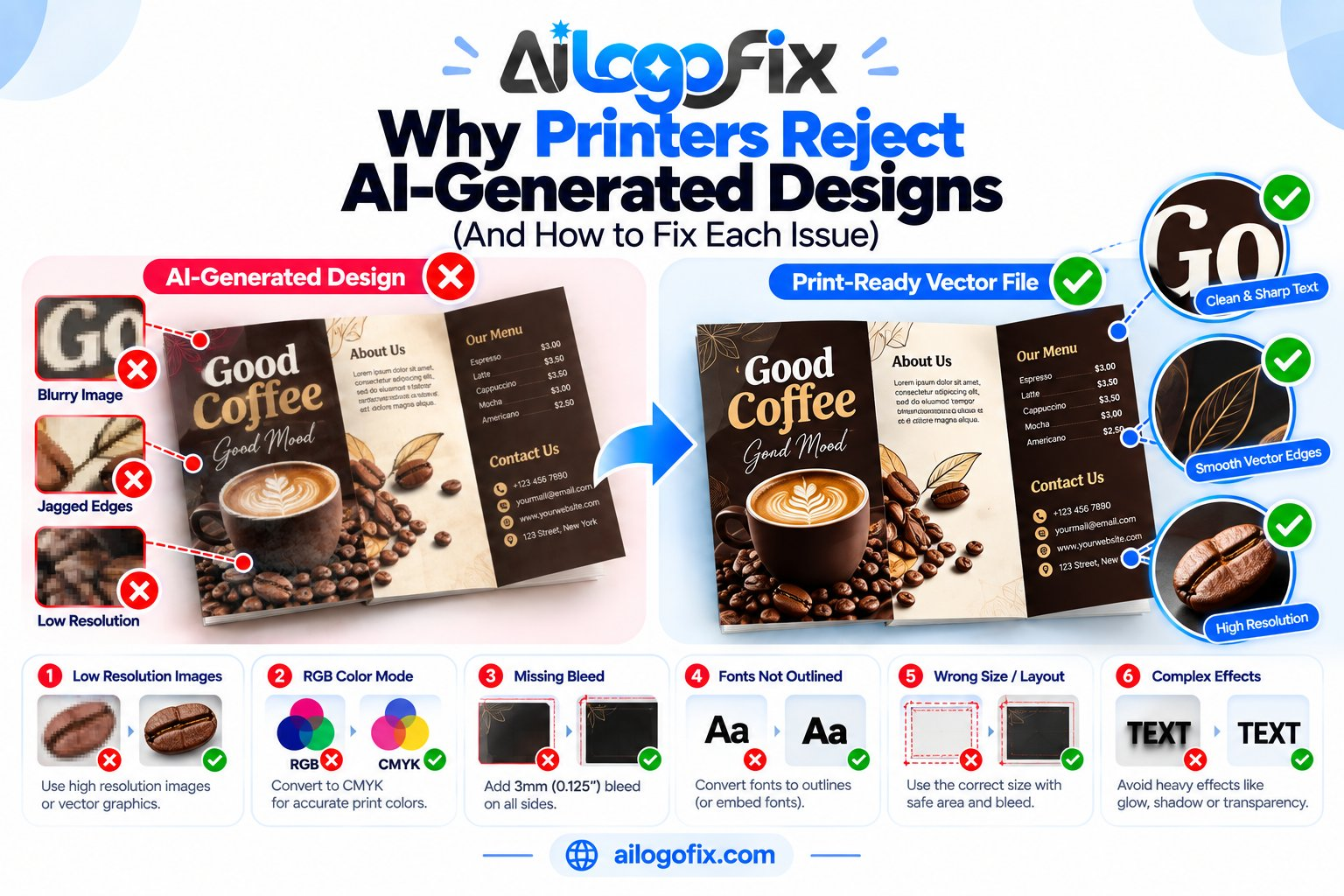
Quick answer: Printers reject AI designs for 7 fixable reasons: RGB instead of CMYK, resolution too low, no bleed, unusable AI text, missing fonts, flattened uneditable files, and no vector logo. Fix all 7 and any AI design becomes printable.
Reason 1: RGB Color Mode
Why printers reject it: Commercial printers print in CMYK ink. An RGB file forces an automatic conversion that dulls vivid colors unpredictably — and printers won’t gamble your money on a guess.
The fix: Convert to CMYK yourself and correct the colors while viewing in CMYK. Never let the printer’s RIP software do the conversion blind. Guide: RGB vs CMYK vs Pantone.
Reason 2: Resolution Too Low
Why printers reject it: AI images are typically ~1024px. A full-page print at 300 DPI needs 10× that. Enlarging a small file produces visible pixelation — the printer knows it will look bad and refuses to put their name on it.
The fix: Upscale to 300 DPI at final size before anything else. If upscaling can’t save it, rebuild the layout at proper size using the AI image as reference only.
Reason 3: No Bleed
Why printers reject it: Without the standard 3mm bleed, trimming leaves white slivers along edges. Printers can’t add bleed that isn’t there.
The fix: Rebuild the document at trim size + 3mm bleed on all sides, extending backgrounds into the bleed zone.
Reason 4: AI-Generated Text
Why printers reject it: AI text is often gibberish on close inspection — misspelled words, wrong numbers, impossible letterforms. No printer will print text they can’t verify.
The fix: Retype every word as real, editable text. Proofread twice. This is the single most important fix on this list.
Reason 5: Missing or Unoutlined Fonts
Why printers reject it: If your file references fonts the printer doesn’t have, text reflows or substitutes — ruining the layout.
The fix: Embed fonts in the PDF or convert text to outlines before export.
Reason 6: Flattened, Uneditable File
Why printers reject it: A flat JPG gives the printer nothing to work with — no layers to adjust, no text to fix, no elements to reposition for their equipment.
The fix: Deliver a proper print PDF with live (or outlined) text and placed high-resolution images — not a flattened image file.
Reason 7: Pixelated or Missing Logo
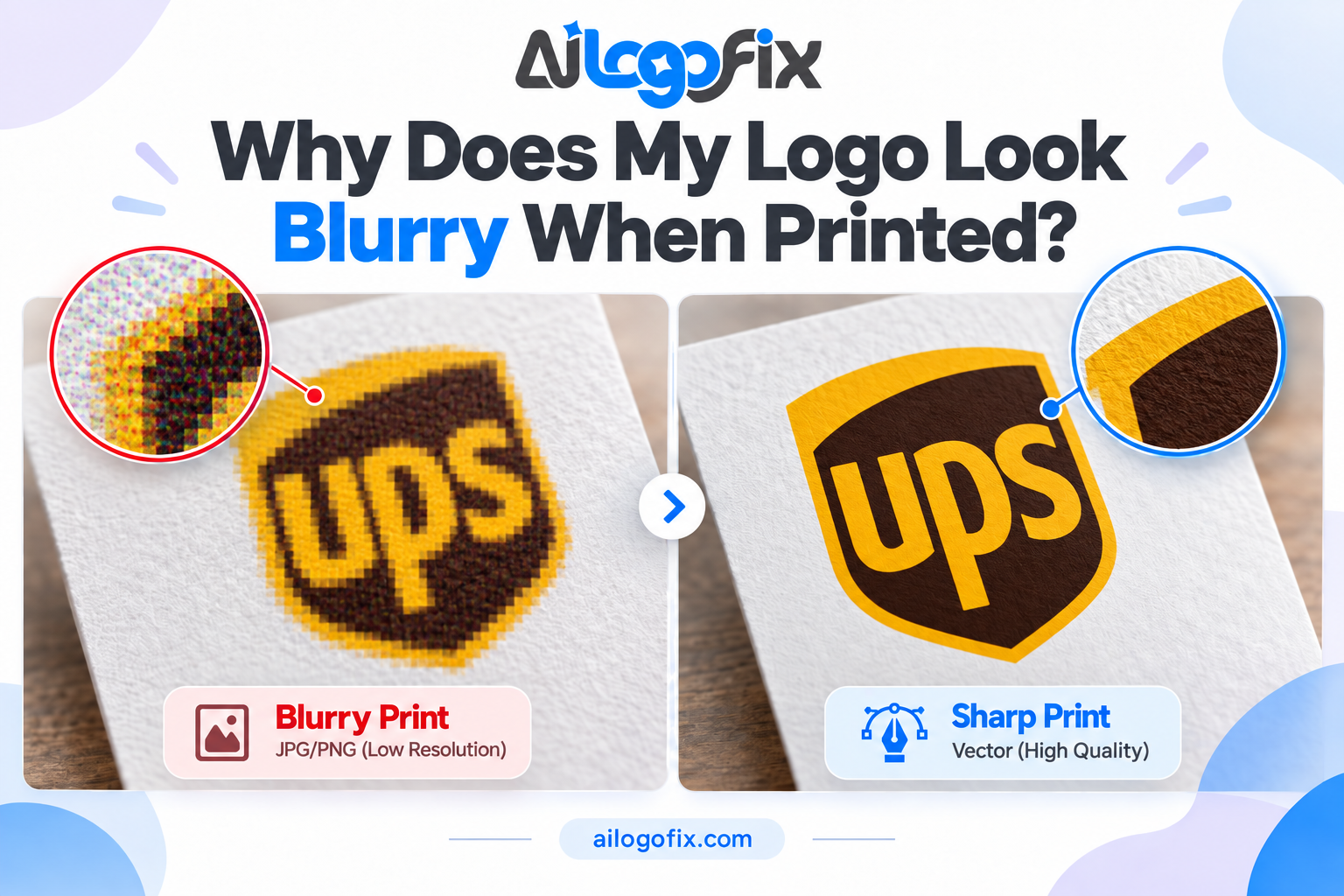
Why printers reject it: The AI-generated logo embedded in the design is low-resolution with broken geometry. On the printed piece it will look blurry next to crisp text.
The fix: Replace it with your real vector logo. Only have pixels? Get it rebuilt as a vector first.
The 2-Minute Self-Check Before Sending
Run through this before every print order: CMYK? 300 DPI at size? 3mm bleed? All text retyped and proofread? Fonts embedded/outlined? Print PDF (not JPG)? Vector logo? Seven yeses means zero rejections.
FAQs
Why do printers reject AI-generated designs so often?
Because AI output violates nearly every print requirement simultaneously: RGB, low-res, no bleed, bad text, flattened. It’s not bias against AI — it’s physics and print standards.
Can a printer fix my file for me?
Some offer paid prepress services, but most expect print-ready files. Fixing it yourself is faster and far cheaper than rush prepress fees.
What’s the most common rejection reason?
Low resolution combined with no bleed — the two issues present in almost every raw AI image.
Do online print services reject files too?
Yes — automated preflight checks at online printers reject bad files instantly, often with a cryptic error code. Same 7 fixes apply.
Is CMYK really mandatory?
For standard commercial printing, yes. Some digital printers accept RGB, but the conversion happens anyway — control it yourself.
How do I know my file will pass?
Use the 2-minute self-check above. When in doubt, ask the printer for their file guidelines before designing — every shop publishes them.
The bottom line: Printers don’t reject AI designs because they’re AI — they reject them because they’re not print files yet. Seven fixes stand between rejection and a perfect print run.
Printers Reject AI Designs: Complete FAQ
Deeper answers to the questions readers ask after learning why printers reject ai designs. Use these alongside the seven reasons covered above. If you have ever wondered exactly why printers reject ai designs while accepting traditional files, the answers below explain the mechanics.
Why do printers reject AI designs instead of just fixing them?
Because fixing your file is skilled labor they cannot bill cleanly, and a bad fix makes them liable for a ruined run. When printers reject ai designs, they are really saying the file does not meet the minimum technical bar for their workflow. Prepress operators run dozens of jobs a day; a file needing an hour of repair breaks their schedule. Some shops offer file-fixing services for a fee, but most prefer you return with a correct file. The rejection protects both sides.
Is it the AI part printers object to, or the file quality?
The file quality, every time. No printer cares which tool made your design; they care about resolution, color mode, bleed, fonts, and format. The reason printers reject ai designs so often is simply that AI generators output the wrong technical specs by default: RGB, low resolution, no bleed, fake text. A properly rebuilt AI design sails through prepress exactly like any traditionally designed file. Fix the specs and printers reject ai designs no more often than they reject traditional files.
What does “preflight failed” mean on my proof?
Preflight is the automated technical check printers run on every incoming file. It flags missing bleed, RGB objects, low-resolution images, missing fonts, and incorrect page sizes. When printers reject ai designs at preflight, you get a report listing each issue, which is actually helpful: it is a precise punch list. Work through it item by item, re-export, and resubmit. Most rejections clear on the second submission once you understand what preflight checks.
Can I ask the printer to fix my AI design file?
You can ask, but expect a fee and a wait. Many shops offer design services that will rebuild your concept properly, which is often the fastest path when printers reject ai designs and you are on a deadline. Be honest about what you have: send the AI source image, your fonts if any, and the logo files. A good shop will quote the fix work separately from printing. For complex pieces, hiring your own designer first is usually cheaper than paying rush prepress rates.
Do online print services reject AI designs too?
Yes, and their automated upload checkers are stricter in some ways. Online printers validate file specs at upload: wrong size, missing bleed, or RGB color mode triggers an instant warning or rejection. The upside is the feedback is immediate and specific. When printers reject ai designs through an online portal, you see exactly which spec failed, fix it, and re-upload in minutes. Always download the printer’s template for your product before designing, because printers reject ai designs fastest when the file ignores the template.
Will a higher-resolution AI image pass prepress?
Not by itself. Resolution is only one of many gates. A 4K AI image still fails if it is RGB, has no bleed, contains fake text, or arrives as a JPG instead of a press-ready PDF. Printers reject ai designs for the full package of issues, and fixing only resolution leaves the rest. Treat resolution as necessary but not sufficient: it must accompany CMYK conversion, bleed, real type, and proper export.
How do I know my fixed file will actually pass?
Run your own preflight before sending. In Acrobat Pro, the built-in preflight tool checks bleed, color spaces, image resolution, and font embedding against print standards. Many design apps have similar checks. The PDF format’s print standards (PDF/X-1a and PDF/X-4) exist precisely so files behave predictably on press. If your file passes PDF/X preflight locally, the printer’s check will almost certainly pass too.
What should I send the printer besides the PDF?
Include a low-resolution JPG preview for quick visual reference, your contact details, and clear specs: quantity, stock, finishes, and deadline. If the job has special requirements like foil or embossing, include the mask files as separate PDFs. When printers reject ai designs, incomplete job information compounds the problem, so a complete submission package with notes about anything unusual gets your job into the queue faster.
What is the fastest way to fix a file when printers reject AI designs?
Work the standard sequence without skipping steps: set correct trim size with 3mm bleed, convert to CMYK with the printer’s profile, upscale or replace low-resolution images, retype all text as live type, swap in a vector logo, and export a PDF/X with embedded fonts. Then preflight the PDF yourself before resubmitting. When printers reject ai designs, this systematic pass resolves the rejection in one round instead of three. Rushing individual fixes without the full sequence is what keeps designers stuck in the rejection loop.
7 Mistakes Designers Make When Fixing Rejected Files
Getting rejected is step one. These are the recovery mistakes that turn one rejection into three, and they explain why printers reject ai designs repeatedly from the same designers.
1. Fixing only the flagged issue. Preflight reports list problems, but fixing just the first one and resubmitting wastes a cycle. Fix: address every item on the report plus the usual suspects (bleed, color, fonts) before resubmitting. One thorough pass beats three hasty ones.
2. Arguing with prepress. Telling the printer their standards are outdated never ends well. Fix: treat their feedback as free consulting. They run thousands of jobs, and their specs exist precisely because printers reject ai designs that ignore prepress standards.
3. Resubmitting the same file renamed. Hoping nobody notices is not a strategy. Fix: actually rebuild the problem areas, then verify with your own preflight before the second submission.
4. Switching printers instead of fixing the file. A more lenient shop might accept the file, but the underlying flaws still print badly. Fix: solve the technical problems once. A correct file works at every printer, which is the whole point of standards.
5. Upscaling as the only fix. Bumping resolution does nothing for RGB color, missing bleed, or fake text. Fix: run the complete repair sequence. Resolution is one ingredient, not the recipe.
6. Ignoring the proof. Skipping the proof to save time after a rejection is how errors reach 5,000 copies. Fix: always approve a proof, ideally a hard proof on the actual stock, before the full run.
7. Not saving a working template. Rebuilding from scratch every time guarantees repeated rejections. Fix: once a file passes, save the document as a template with correct size, bleed, color settings, and export presets. Future jobs start compliant.
Deep Dive: How Printer Prepress Actually Works
Understanding the other side of the counter explains exactly why printers reject ai designs and what happens to your file after you hit send. Prepress is the invisible factory between your PDF and the press, and knowing it is the fastest way to stop printers rejecting ai designs.
Your file enters a queue, not a conversation. Modern print shops process dozens or hundreds of jobs daily through automated workflows. Your PDF lands in a hot folder, gets preflighted by software, and either flows to imposition or bounces back with a report. There is no human studying your design with sympathy. The reason printers reject ai designs is usually software applying objective rules: bleed present, color spaces correct, resolution sufficient, fonts embedded. Designing to pass automated preflight is the single highest-leverage skill in print preparation, and it is what stops printers rejecting ai designs from your shop.
Imposition rearranges everything. Your pages get shuffled onto large press sheets in printer spreads, which look nothing like your reading order. Software handles this, but it assumes your file follows standards. Non-standard page sizes, missing bleed, or mixed orientations confuse imposition and trigger manual intervention, which costs time and money. Files that follow the rules flow through untouched; odd files get kicked out for human review, which is where delays and fees appear.
Color gets separated and trapped. Your CMYK file is split into four plates, one per ink. Trapping (slight overlaps between adjacent colors) compensates for microscopic misregistration on press. RIP software does this automatically, but it needs clean vector edges and proper color definitions to work with. Files built correctly are one reason printers reject ai designs less and less as designers learn proper vector workflow. The mathematics of vector graphics is what makes logos and text trap cleanly; rasterized text traps poorly, which is another reason live or outlined type matters.
Proofing is your safety net. Before the full run, the shop produces a proof: either a digital PDF proof or a physical hard proof. This is your last chance to catch errors, and approving it transfers responsibility to you. Read proofs slowly, check every phone number and price, and compare colors against expectations. The proof stage exists because even perfect files can surprise on specific stocks, and it is the final checkpoint before the press runs a job that printers reject ai designs workflows aim to avoid.
Build a printer relationship. Once you find a shop whose specs you understand, stick with them. Save their templates, ICC profiles, and submission guidelines. Regular customers get faster turnarounds, better advice, and occasional forgiveness on borderline files. The shops that once made printers reject ai designs a regular occurrence become partners when your files arrive clean every time.
When to Hire a Designer After Rejection
A rejection is useful feedback, but repeated rejections signal that the cycle where printers reject ai designs needs professional intervention. Here is when to bring in help.
You have been rejected twice for the same job. Two rejections mean the problem exceeds quick fixes. A designer diagnoses the full file, not just the flagged items, and rebuilds it to standard in one pass.
The deadline is now critical. Every rejection cycle burns days. When the event date is fixed, paying a designer for a two-day turnaround beats gambling on a third submission.
The piece is complex. Multi-page booklets, packaging with dielines, or anything with special finishes needs genuine prepress expertise. These are not learn-on-the-job projects.
Your logo is part of the problem. Pixelated or missing logos trigger rejections and look terrible. Get it converted to a true vector logo first, because every print project depends on it.
You print regularly. If print is ongoing for your business, a designer builds you a template system where every future file starts compliant. The investment pays back on every subsequent run.
Stuck in the rejection loop? Message our design team with your rejected file and the printer’s report. We rebuild AI designs into press-ready files that pass preflight on the first resubmission, so printers reject ai designs becomes a problem you used to have.
Printer Rejection Glossary
Preflight: Automated technical check of print files before production.
Imposition: Arranging pages on press sheets for correct folding order.
RIP: Raster Image Processor; converts your PDF into press-ready bitmap data.
Trapping: Slight color overlaps that hide misregistration on press.
Gripper margin: The unprintable edge where the press grips the sheet.
Creep: Page shift in thick folded pieces, compensated during imposition.
Hard proof: A physical test print on the actual stock for approval.
Soft proof: On-screen simulation of press output.
PDF/X: The standardized PDF flavor presses require.
Spot color: A premixed ink (like Pantone) printed as a separate plate.
Bottom line: Printers reject ai designs for objective technical reasons, not taste. Learn the prepress pipeline, build files that pass automated checks, and keep a designer on call for complex jobs. Do that and the days when printers reject ai designs from your workflow become a distant memory.