
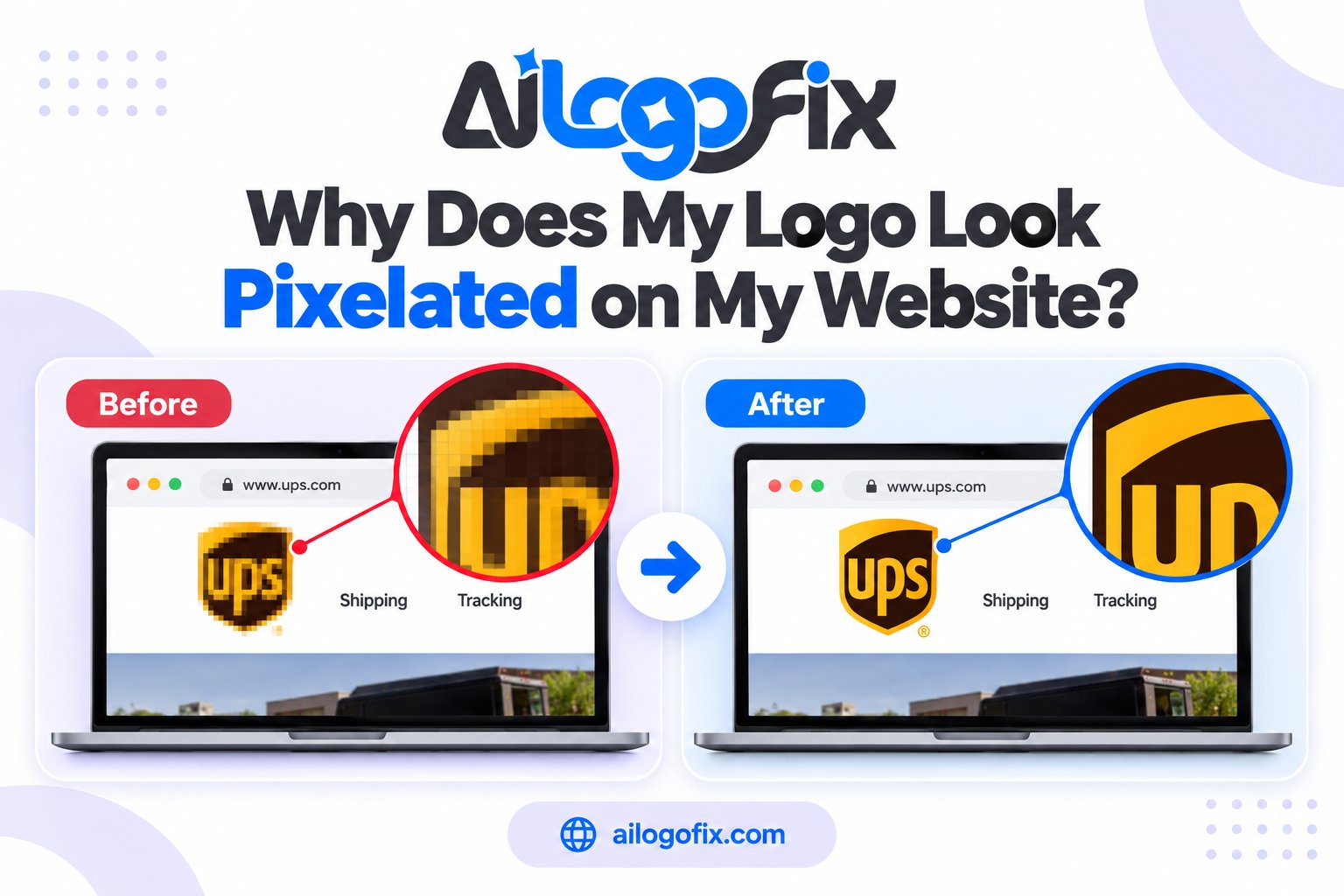
Your website is finally live. The layout looks clean, the text is sharp, the photos load beautifully — but your logo looks soft, blocky, or slightly fuzzy. On your phone, it looks even worse.
In This Guide
- 1. Retina and High-Density Screens (The #1 Cause)
- 2. The File Is Smaller Than Its Display Slot
- 3. You Used JPG Instead of PNG or SVG
- 4. Your Website Platform Recompresses the Upload
- 5. CSS Is Forcing the Wrong Dimensions
- 6. Favicons and Social Previews Use Tiny Versions
- 7. The Source File Was Already Low Quality
- How to Diagnose Your Logo in 60 Seconds
- The Right Fix for Each Cause
- SVG vs PNG vs JPG for Website Logos
- Mistakes That Make Pixelation Worse
- Website Logo Checklist
- Frequently Asked Questions
- The Bottom Line
- Logo Pixelated on Website: FAQs
- 4 Website Logo Mistakes That Cause Pixelation
- When to Hire a Designer for Web Logos
- Web Logo Glossary
- Final Word on Pixelated Website Logos
The frustrating part? That same logo looked perfectly crisp in the design file your designer sent.
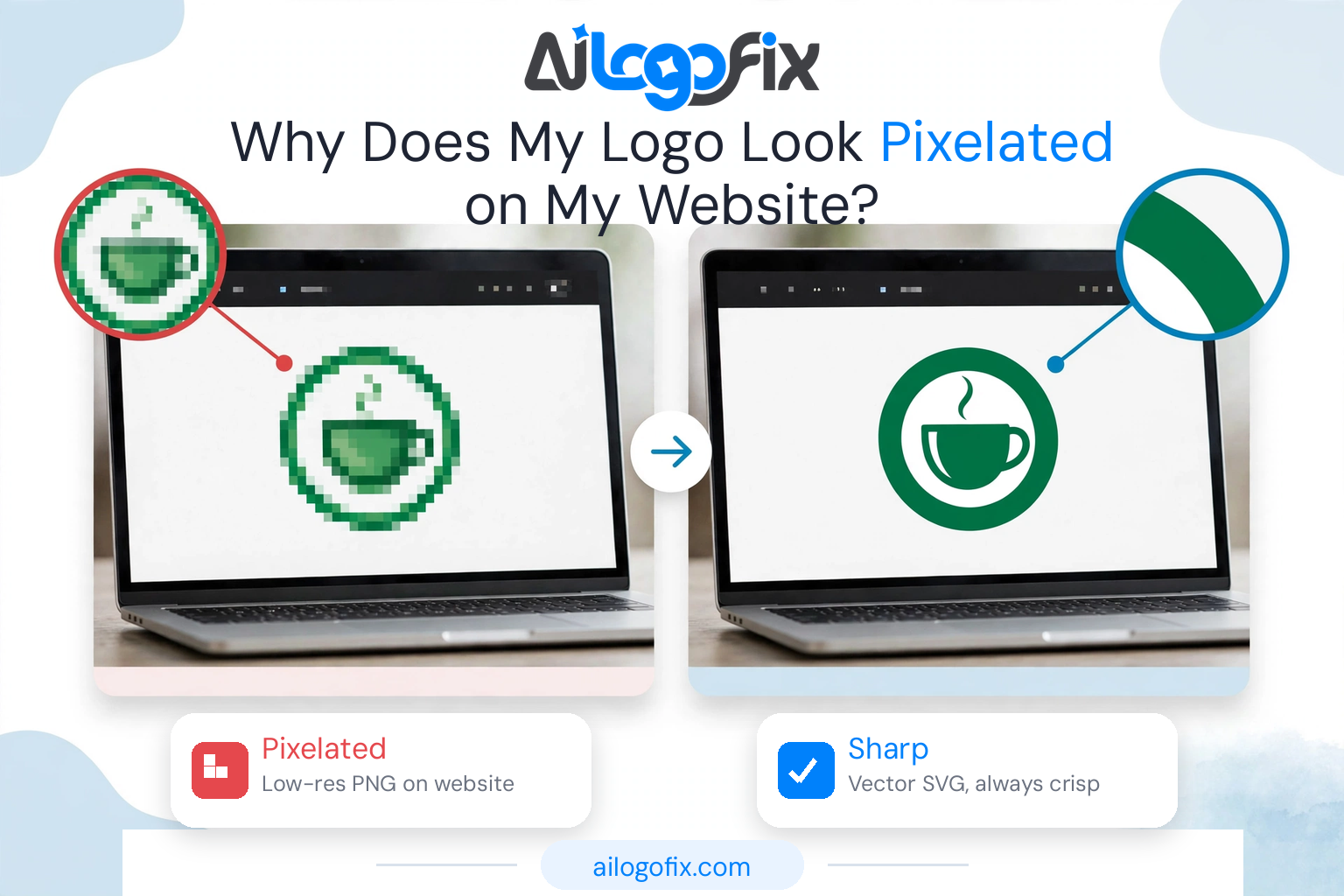
The short answer: your logo is almost certainly a raster image (PNG or JPG) being displayed larger than its actual pixel dimensions. The most common trigger is a high-density “retina” screen, which needs roughly twice the pixels to render the same sharpness. The permanent fix is a true vector SVG logo — or, failing that, a PNG exported at 2–3× the size it displays at.
This guide explains the seven reasons website logos turn pixelated, how to diagnose yours in under a minute, and the exact fix for each cause.
1. Retina and High-Density Screens (The #1 Cause)
Most modern phones and laptops — iPhones, MacBooks, high-end Android devices — use high-density screens that pack two or even three physical pixels into the space of one traditional pixel.
A logo exported at 200 pixels wide looks perfectly sharp on an older screen. On a retina display, the browser stretches those 200 pixels across 400 physical pixels, and every edge goes soft. The logo is not broken — it is simply being asked to do twice the work with half the information.
This is why a logo can look fine on one computer and blurry on another. Adobe’s raster vs vector guide explains the same principle: raster images have fixed pixels, so they degrade the moment they are scaled up.
2. The File Is Smaller Than Its Display Slot
Even without retina screens, pixelation happens when the uploaded file is smaller than the space your theme gives it. If your header displays the logo at 300 pixels wide but the file is only 180 pixels wide, the browser stretches it — and stretched pixels always look blurry.
This often happens when someone downloads the logo from social media, an email signature, or an old presentation instead of using the original master file.
3. You Used JPG Instead of PNG or SVG
JPG is a poor choice for logos on websites. It does not support transparency, so logos often arrive with an ugly white box, and its lossy compression creates fuzzy artifacts around sharp edges and text.
If your logo is a JPG, switch to PNG at minimum. Better yet, move to SVG. Our full breakdown of JPG vs PNG vs SVG for logos explains when each format makes sense.
4. Your Website Platform Recompresses the Upload
WordPress, Shopify, Squarespace, and Wix all process uploaded images. They may resize them, compress them, or serve a smaller “optimized” version to speed up the page.
Sometimes the platform picks a thumbnail-sized version of your logo for the header. If your logo suddenly looks worse after upload than the file on your computer, check which version of the file the site is actually serving.
5. CSS Is Forcing the Wrong Dimensions
Themes control logo size with code. If the CSS sets the logo to display wider than the file’s real dimensions — or stretches it to fill a container — the browser scales it up and softens it.
This is common after theme updates or when switching themes: the new header slot is bigger, but the logo file stayed the same.
6. Favicons and Social Previews Use Tiny Versions
The little icon in the browser tab (favicon) and the preview image when someone shares your link are separate files, often auto-generated from your main logo. A detailed logo shrunk to 32×32 pixels will always look muddy unless you use a simplified version designed for tiny sizes.
7. The Source File Was Already Low Quality
Sometimes the problem starts before the website. A logo screenshotted from a PDF, downloaded from Facebook, or pulled from an email signature has already lost quality. No website setting can restore detail that was never in the file.
If this is your situation, the answer is not a better upload — it is a better source file. Our Blurry Raster Logo to Vector guide explains how a low-quality logo gets professionally rebuilt.
How to Diagnose Your Logo in 60 Seconds
Right-click the logo on your live site and choose “Inspect” (or “Inspect Element”). Your browser will show the image’s natural size (the file) and its displayed size (the slot).
If the displayed size is bigger than the natural size, you found the problem: the file is being stretched. Then open the site on your phone. If it looks worse on mobile than on desktop, retina density is the main culprit.
The Right Fix for Each Cause
| What is wrong | The fix |
|---|---|
| Blurry on retina and phone screens | Use an SVG logo, or a PNG exported at 2–3× the display size |
| File smaller than the header slot | Re-export at the correct size from the vector master — never upscale the small file |
| Logo is a JPG | Switch to PNG with transparency, or SVG |
| Platform recompresses uploads | Upload a larger file, adjust image optimization settings, or use SVG (many platforms skip SVG processing) |
| CSS stretches the logo | Set the logo’s display width to match the file, or upload a file that matches the CSS |
| Blurry favicon or link preview | Create dedicated small-size versions: 32×32 favicon, 180×180 touch icon, 1200×630 social image |
| Source file was low quality | Rebuild from the vector master, or have the logo professionally vectorized |
SVG vs PNG vs JPG for Website Logos
SVG is the best choice for most website logos. It is vector-based, so the browser redraws it perfectly at any screen density — retina, 4K, or anything else. One file works everywhere, and it is usually tiny.
PNG is the best fallback. Export it with a transparent background at two to three times the display size. A logo shown at 200 pixels wide should be exported at 400–600 pixels wide.
JPG should be avoided for logos whenever possible — no transparency and visible compression damage around edges. To understand the underlying formats, see What Is a Vector File?
Mistakes That Make Pixelation Worse
- Upscaling the small PNG and re-uploading it. Enlarging a raster file does not add detail — it just makes bigger blurry pixels. Always go back to the original or vector master.
- Screenshotting your own website logo. Each screenshot-and-save cycle throws away quality.
- Using a JPG with a white background on a colored header. The box around the logo looks unprofessional even when it is sharp.
- Only checking on desktop. Most of your visitors are on high-density phone screens. Always test there.
- Changing the file extension instead of converting. Renaming logo.jpg to logo.png — or even logo.svg — does not change what is inside the file.
Website Logo Checklist
Before you call the job done, run through this list:
- Use SVG when your platform supports it; otherwise PNG at 2–3× display size
- Transparent background — no white box
- Displayed size matches (or is smaller than) the file’s real pixel size
- Tested on both a phone and a desktop
- Dedicated favicon, touch icon, and social preview images
- The clean vector master file stored safely for future use
Still Stuck With a Blurry Website Logo?
If your only logo file is a small PNG, JPG, or screenshot, no upload trick will make it sharp. Our specialist team manually rebuilds pixelated logos into clean vector artwork — and delivers a crisp SVG plus correctly sized web files, so your logo looks sharp on every screen.
Message Us Not sure what you need? Message the team – we will review your current logo file for free.
Frequently Asked Questions
Why is my logo blurry on mobile but fine on desktop?
Phones have high-density (retina) screens that need roughly twice the pixels for the same sharpness. A 1× PNG that looks fine on an older monitor gets stretched on a phone. An SVG — or a PNG exported at 2–3× the display size — fixes it.
Is SVG or PNG better for a website logo?
SVG is better for most logos because it stays perfectly sharp at any size or screen density and the file stays small. Use PNG when your platform does not support SVG, or when your logo contains photographic effects that do not translate well to vector.
What size should my website logo be?
Most headers display logos around 160–250 pixels wide. Export your PNG at double that (320–500 pixels wide) for retina sharpness — or simply use SVG and stop worrying about sizes. Also prepare a 32×32 favicon and a 1200×630 social sharing image.
Why does WordPress make my logo blurry?
WordPress may serve a resized or compressed version of your upload, and many themes display the logo larger than the file. Upload a larger source file (or an SVG), and check that your theme is not stretching the logo with CSS.
Can I fix a pixelated logo by enlarging the PNG?
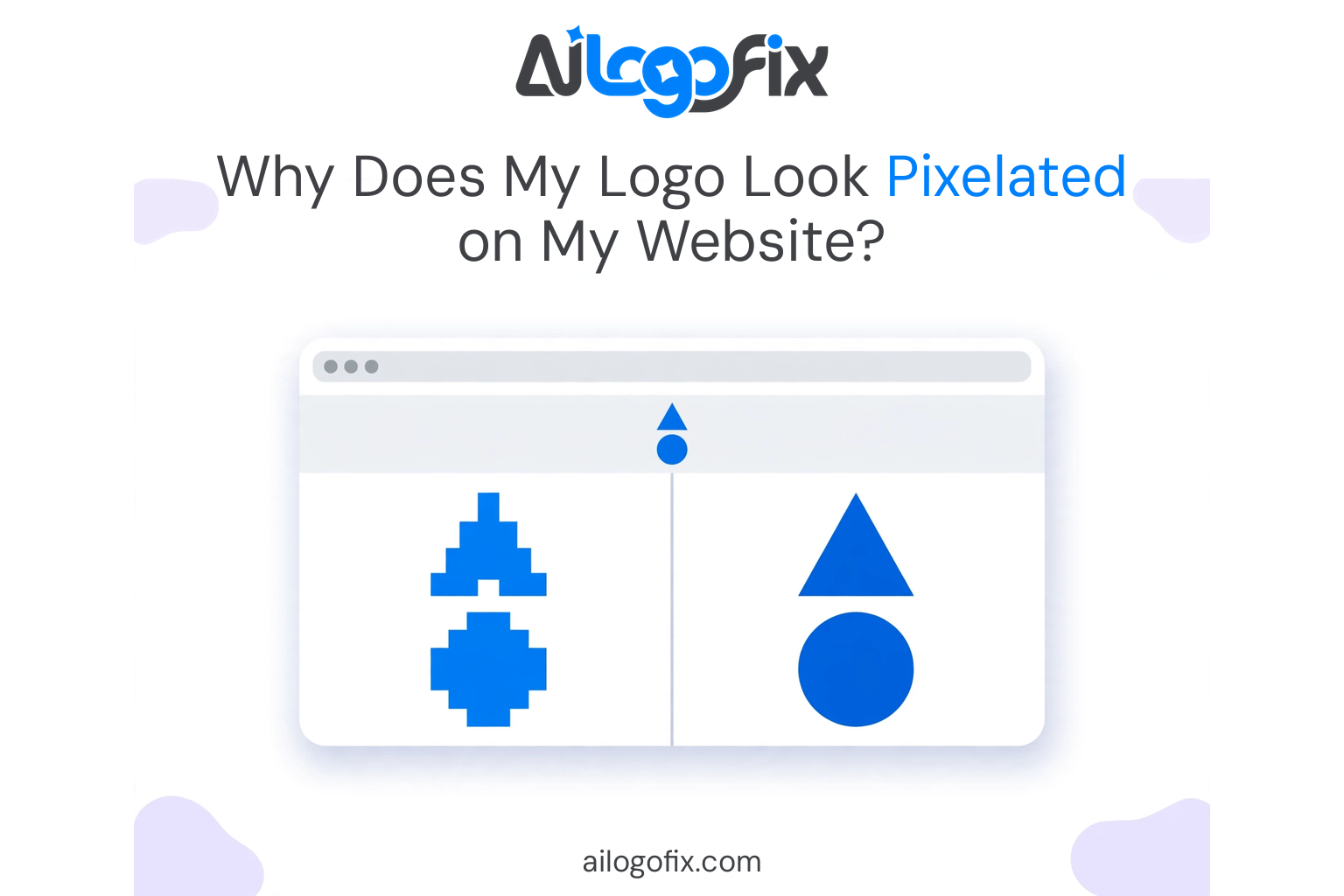
No. Enlarging a raster image spreads the same pixels over a bigger area — it cannot create detail that is not there. You need to re-export from the original vector master, or have the logo professionally rebuilt as vector.
Can AiLogoFix make a sharp website logo from my blurry file?
Yes. If your only file is a small or pixelated raster image, our team manually redraws it as clean vector artwork and delivers an SVG plus correctly sized PNG files for the web, so the logo stays sharp everywhere.
The Bottom Line
A pixelated website logo is almost never a mystery — it is a small raster file being asked to fill a bigger, sharper space than it was made for. Check the file size against the display size, switch to SVG (or a 2–3× PNG), and test on your phone.
And if the only version of your logo you have is the blurry one, that is exactly what our Raster to Vector Service is for. Message us your current file and we will tell you honestly what it will take to make it sharp.
Logo Pixelated on Website: FAQs
Everything about a logo pixelated on website pages, and how to fix it.
Why is my logo pixelated on website pages but sharp elsewhere?
Websites resize and compress images aggressively. A logo pixelated on website display usually means the uploaded file was too small, got recompressed by your CMS, or is being stretched by CSS. Retina screens double the problem, they need twice the pixels. Diagnosing a logo pixelated on website starts with checking the actual displayed size versus the file size.
Will SVG fix a logo pixelated on website?
Yes, completely. SVG is resolution-independent, so a logo pixelated on website becomes impossible. The logo renders razor-sharp on every screen, from phones to 5K monitors, at any size. If your logo pixelated on website persists after trying bigger PNGs, switching to SVG is the definitive answer. Get your logo as SVG and never worry again.
What size should my website logo be to avoid a logo pixelated on website?
Upload at 2x the display size minimum. If your header shows the logo at 200px wide, upload 400px or more. A logo pixelated on website headers often come from uploading exactly at display size, leaving no headroom for retina screens. For a logo pixelated on website fix without SVG, PNG at 2x-3x display size with careful compression works well.
Does WordPress compress logos and cause a logo pixelated on website?
WordPress generates resized copies and some themes compress uploads. A logo pixelated on website WordPress issue often traces to the theme serving a thumbnail instead of the full file. Fix: upload via the customizer logo setting (which typically preserves quality), or use an SVG upload plugin. The SVG format sidesteps all WordPress image processing.
JPG or PNG: which prevents a logo pixelated on website?
PNG, always for logos. JPG compression smears sharp edges and flat colors, manufacturing a logo pixelated on website look even from a decent file. PNG preserves crisp lines. But neither beats SVG for a logo pixelated on website cure. Learn the limits of raster graphics to understand why vector wins on the web.
Can CSS cause a logo pixelated on website?
Yes. CSS that forces a small image to display larger stretches pixels, creating a logo pixelated on website instantly. Check your stylesheet for width rules exceeding the file’s natural size. A logo pixelated on website from CSS is fixed by either uploading a larger file or constraining display size to match. Browser dev tools reveal the rendered versus natural dimensions in seconds.
Why is my favicon a logo pixelated on website tabs?
Favicons display at 16×16 pixels, brutal for detailed logos. A logo pixelated on website tabs usually means you shrank the full logo instead of designing a simplified mark. Create a favicon-specific version: bold shapes, no text, high contrast. Supply multiple sizes (16, 32, 180px) so devices pick the right one instead of scaling a logo pixelated on website mess.
4 Website Logo Mistakes That Cause Pixelation
1. Uploading the exact display size. No retina headroom guarantees a logo pixelated on website on modern screens. Fix: upload 2x-3x, or better, switch to SVG.
2. Using JPG for the logo. JPG artifacts destroy clean edges. Every logo pixelated on website audit finds a JPG where a PNG or SVG belongs. Fix: re-export as PNG or convert to SVG.
3. Letting page builders recompress. Some builders apply lossy compression to all uploads. A logo pixelated on website from builder settings needs the quality slider raised or the logo added as raw HTML/SVG.
4. Stretching with CSS. A 150px file displayed at 300px is a logo pixelated on website by definition. Fix: match file size to display size, then double it for retina.
When to Hire a Designer for Web Logos
Nothing fixes the blur. If every upload still shows a logo pixelated on website, your source file is the problem. A designer rebuilds it as true vector.
You need an SVG. Converting to clean SVG requires skill. Our raster to vector service delivers web-perfect files.
Rebrand or launch. Get the logo right before the site goes live. Message our team for a sharp, professional web logo package.
Web Logo Glossary
Retina display: High-density screen needing 2x-3x image resolution.
SVG: Scalable Vector Graphics, resolution-independent web format.
Compression: Reducing file size, lossy methods degrade quality.
Natural size: An image’s actual pixel dimensions before CSS scaling.
Favicon: The tiny icon shown in browser tabs and bookmarks.
Srcset: HTML attribute serving different images per screen density.
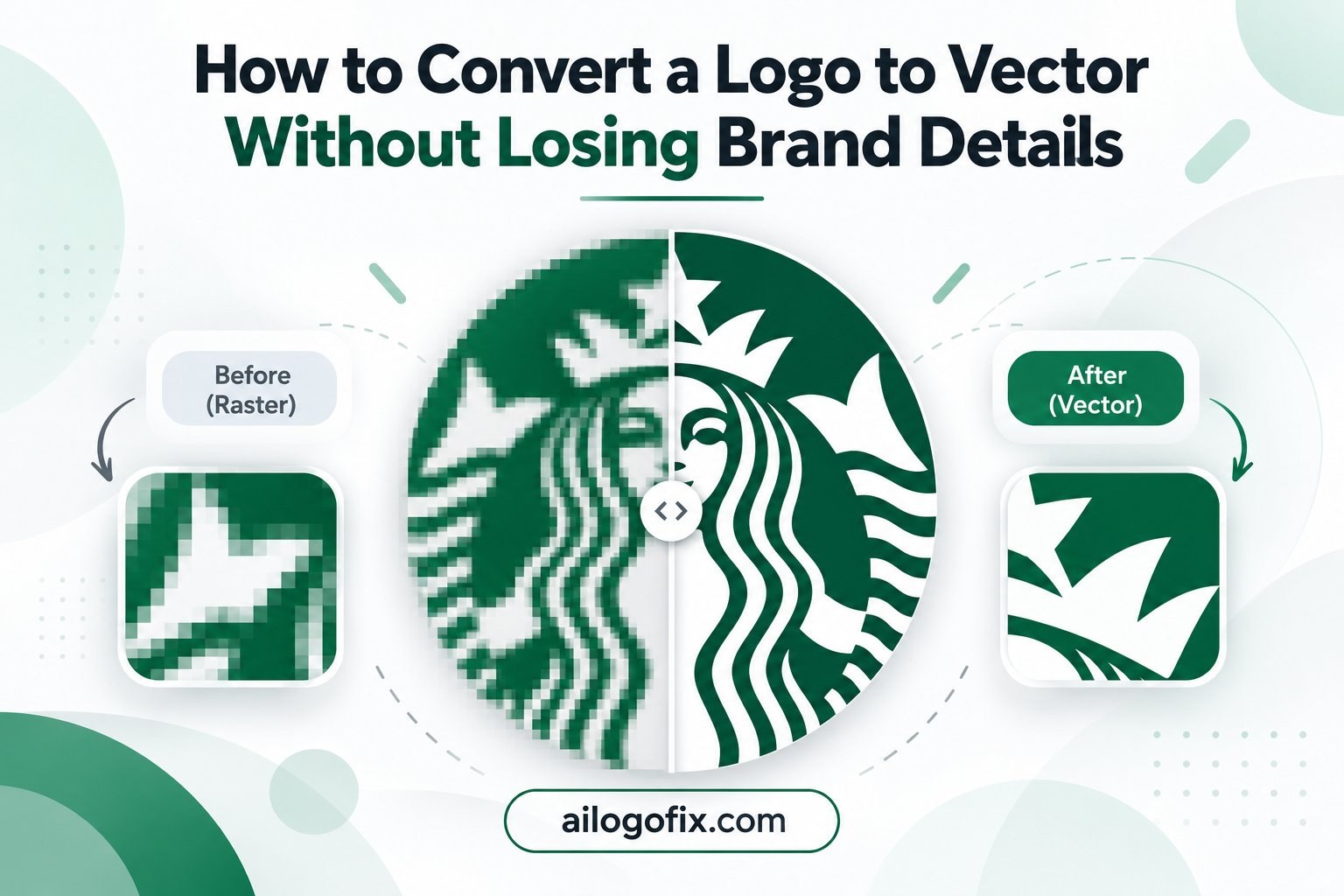
Raster: Pixel-based image (JPG, PNG); blurs when enlarged.
Vector: Math-based artwork; infinitely sharp at any size.
Final Word on Pixelated Website Logos
A logo pixelated on website pages undermines trust in seconds. Visitors judge your professionalism by what they see, and a fuzzy logo whispers amateur. The good news: every logo pixelated on website case has a clear cause and a clear fix, usually SVG conversion or a properly sized PNG. Audit your site today using the 60-second diagnosis above. If your logo pixelated on website problem survives the checklist, your source file needs professional rebuilding. Get a crisp vector logo or message us, and put pixelation behind you for good.