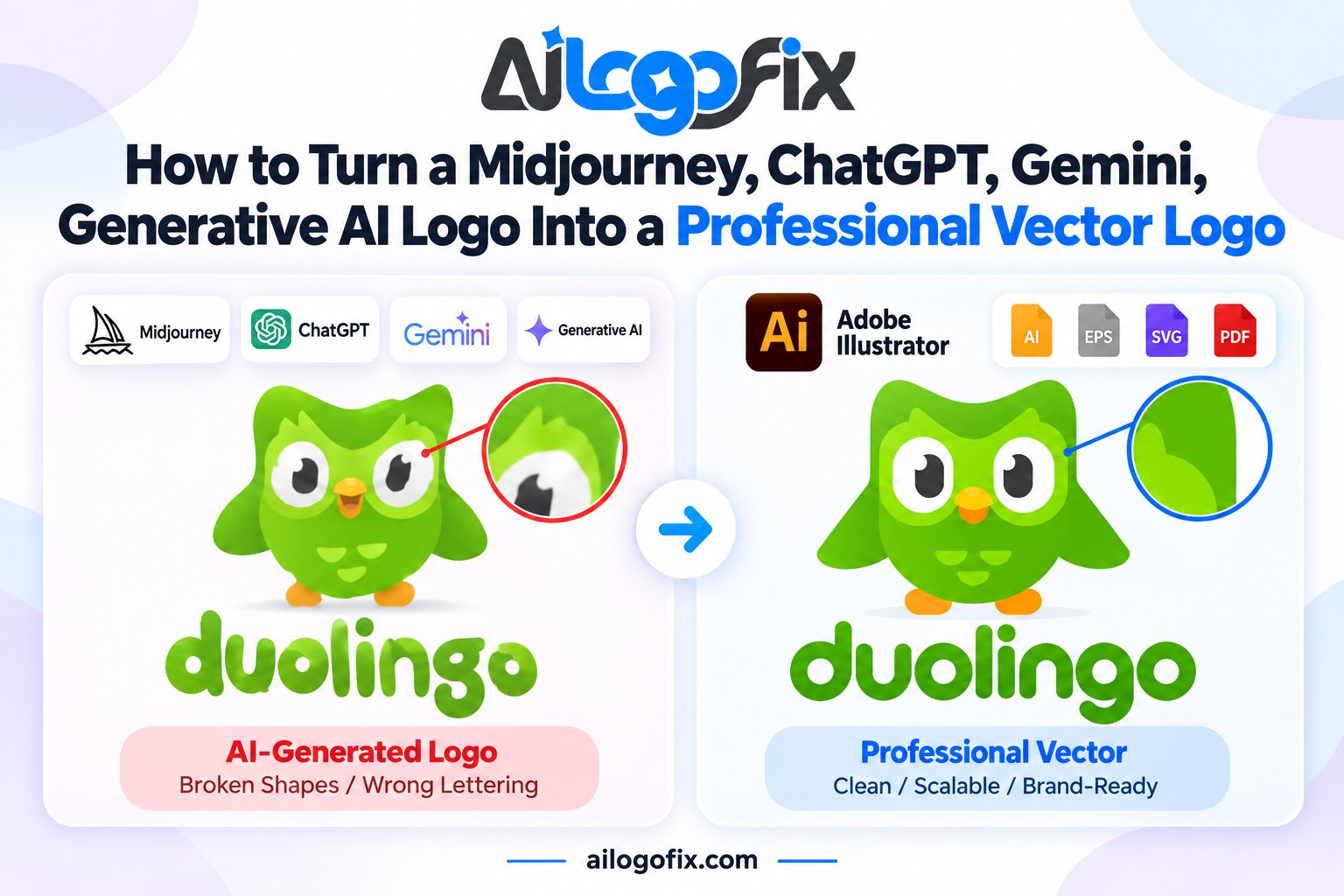
How to Turn a Midjourney, ChatGPT, Gemini, or Generative AI Logo Into a Professional Vector Logo
You made a logo with Midjourney, ChatGPT, or Gemini. You love the concept. But what you actually have is a flat image file — a JPG or PNG that turns blurry the moment you enlarge it, and that no printer, sign shop, or embroiderer can work with properly.
In This Guide
- Why Your AI Logo Is Not a Vector (Even If It Looks Like One)
- What Each AI Generator Gives You (and Its Typical Problems)
- What to Send for an AI Logo to Vector Conversion
- The Conversion Process, Step by Step
- DIY vs Professional AI Logo Vectorization
- Mistakes to Avoid
- FAQs
- AI Logo to Vector: Frequently Asked Questions
- 5 AI Logo to Vector Mistakes to Avoid
- Pro Tips for Flawless AI Logo to Vector Results
- When to Hire a Professional for AI Logo to Vector Work
- AI Logo to Vector Glossary
To turn an AI logo to vector — a real, professional, infinitely scalable logo file — the artwork needs to be rebuilt by hand: flaws corrected, shapes redrawn as clean paths, and delivered in the formats the real world demands.
Quick answer: Converting an AI logo to vector means a designer audits your AI image for flaws (text errors, bad symmetry, artifacts), corrects them, manually redraws the artwork as vector paths, and delivers professional files (AI, EPS, SVG, PDF, plus print and web versions). Auto-tracing alone is not enough — it copies every flaw.
Why Your AI Logo Is Not a Vector (Even If It Looks Like One)
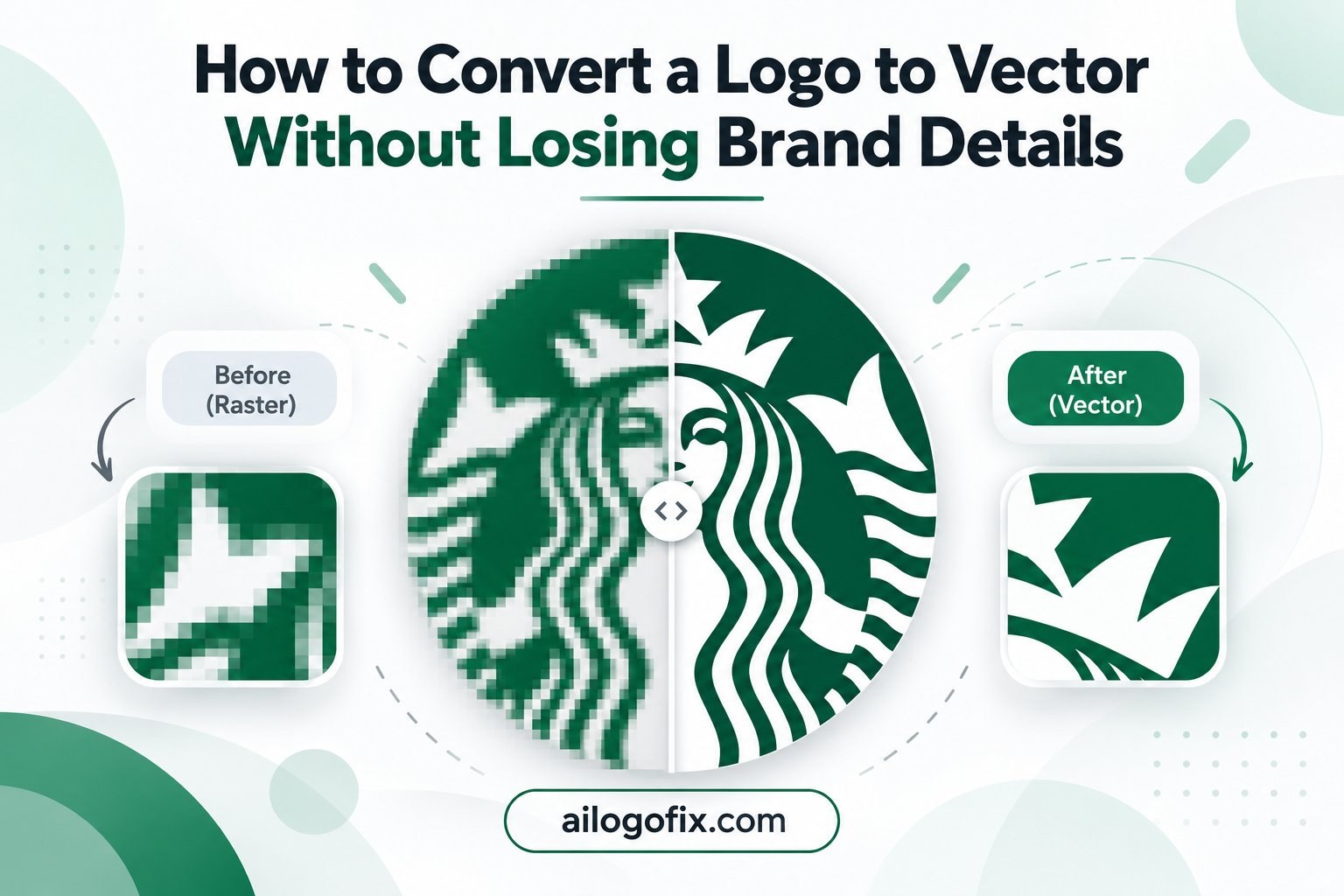
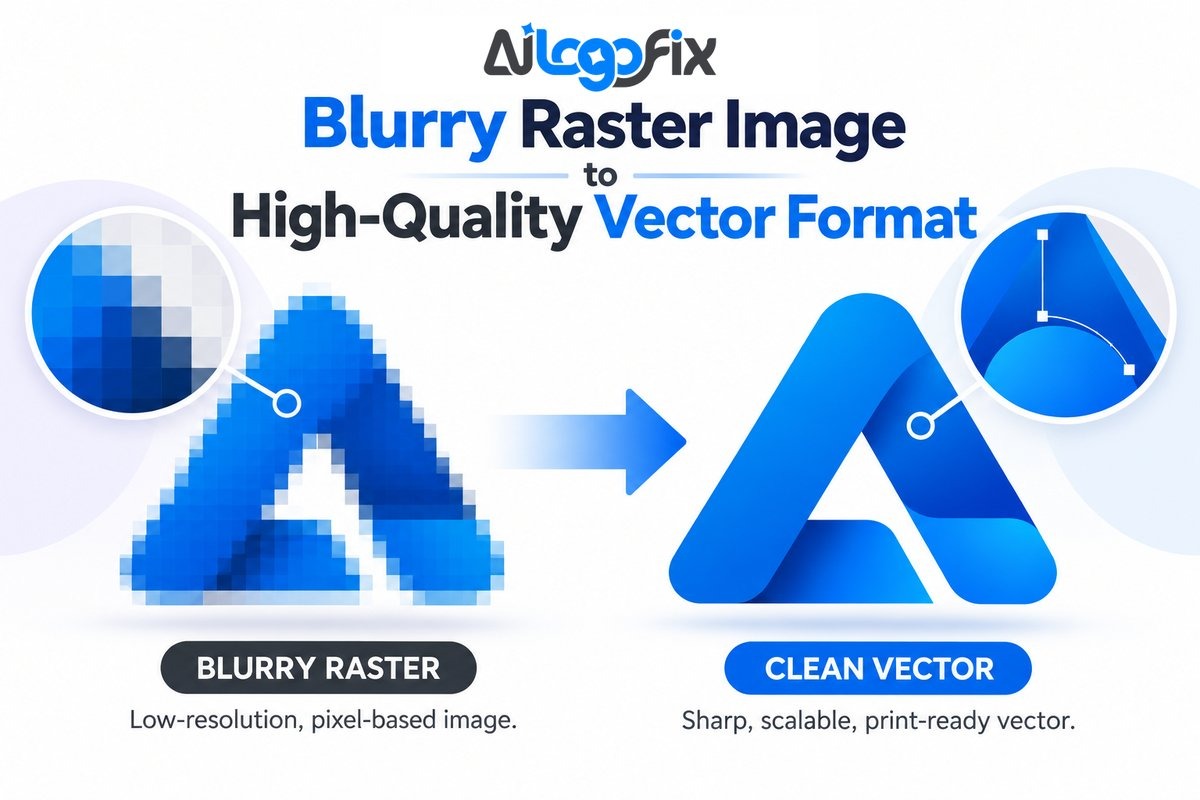
Every AI image generator — Midjourney, ChatGPT/DALL-E, Gemini, Ideogram, Stable Diffusion — outputs raster images: fixed grids of pixels. A vector file is the opposite: mathematical paths that stay razor-sharp at any size.
This matters because everything professional done with a logo assumes vector: offset printing, screen printing, embroidery digitizing, vinyl cutting, laser engraving, signage, vehicle wraps. Hand a sign shop a Midjourney PNG and they will ask for the vector — or charge you to recreate it.
So the journey from AI concept to professional logo has two parts: fix the flaws (AI images always have them) and rebuild as vector (so the logo works everywhere). Do them in that order — never the reverse.
What Each AI Generator Gives You (and Its Typical Problems)
Not all AI outputs are equal. Knowing your generator’s habits tells you what needs fixing:
| Generator | What you get | Typical flaws to fix |
|---|---|---|
| Midjourney | Highly stylized, artistic concepts; strong composition | Garbled text, excessive detail, ornamental artifacts, unprintable effects |
| ChatGPT / DALL-E | Cleaner, more literal concepts; better text than most | Subtle asymmetry, soft edges, generic styling, flat lighting baked in |
| Gemini | Versatile concepts, decent text handling | Inconsistent line weights, background elements fused into the mark |
| Ideogram | Best-in-class text accuracy among generators | Over-detailed rendering, raster-only output, style inconsistencies |
Whichever tool you used, the conversion process is the same. The flaws just differ in flavor.
What to Send for an AI Logo to Vector Conversion
You do not need a perfect file. Send the best version you have:
1. The highest-resolution AI image you can download. In Midjourney, upscale before downloading. In ChatGPT, request the full-size image. Even a screenshot works — but bigger is better.
2. The correct spelling of every word. AI text is unreliable, so tell the designer exactly what the text should say — business name, tagline, and capitalization.
3. Notes on what to keep and what to change. Love the icon but hate the colors? Want a simpler version? Say so upfront. The conversion is the perfect moment to refine.
4. How you plan to use the logo. A logo headed for embroidery needs bolder shapes than one headed for a website. Mention print, signage, apparel, or packaging if relevant.
The Conversion Process, Step by Step
Here is what professional AI logo to vector conversion actually involves:
Step 1: Audit the AI artwork
The designer inspects your image at high zoom: text errors, broken symmetry, melted shapes, stray artifacts, inconsistent strokes, problem colors. Everything that would embarrass you later gets flagged now. (See the full rogues’ gallery in Common AI-Generated Logo Mistakes and How to Fix Them.)
Step 2: Fix the flaws first
Text gets retyped correctly — never traced from gibberish. You can read exactly how in AI Logo Text Looks Wrong? How Human Designers Fix Lettering Errors. Shapes get corrected, artifacts removed, details simplified where the logo must survive at small sizes.
Step 3: Manually redraw as vector
The designer rebuilds the artwork path by path in professional software — true circles, mirrored symmetry, consistent strokes, clean curves. This is the opposite of auto-trace: every anchor point is deliberate. Our manual tracing vs auto trace guide shows why this step cannot be automated for logo work.
Step 4: Build the color system
The vector gets proper color versions: full-color, black, white/reversed, plus print-safe CMYK builds and vibrant RGB versions. Neon AI colors that would die on paper get rebuilt to survive printing.
Step 5: Deliver the professional file package
You receive editable vector sources (AI, EPS, SVG, PDF) plus high-resolution PNG and JPG in print and web color modes — everything covered in What Is a Vector File?
DIY vs Professional AI Logo Vectorization
What you can do yourself: If you only need the logo for a website header or social profile, an AI upscaler plus careful exporting may be enough for now. Some vector tools offer auto-trace when you convert an AI logo to vector yourself — acceptable for simple, flaw-free shapes, but it will faithfully reproduce every AI flaw in vector form.
When you need a professional: the moment the logo touches print, signage, embroidery, packaging, or trademark filing. Also when the AI concept has text errors, asymmetry, or artifacts — auto-trace cannot fix what it does not understand.
The honest rule: auto-trace converts pixels to paths; it does not convert an AI image into a professional logo. The design judgment in between is the actual service.
Mistakes to Avoid
Do not auto-trace the raw AI image. You will get a vector file containing every flaw — gibberish text as vector gibberish, wobbly symmetry as vector wobbles. Fix first, vectorize second.
Do not trust “AI vectorizer” one-click tools for logos. They are fine for simple clip art. For a brand mark with text and fine geometry, they produce thousands of messy anchor points and lumpy curves.
Do not skip the flaw audit. Converting a flawed AI logo without fixing it locks the flaws into your “final” files — and you will pay again to fix them later.
Do not forget the source files. A single SVG from a free converter is not a logo package. Insist on editable sources (AI/EPS) plus print and web versions.
Turn Your AI Logo Into a Real Vector Logo
Send us your Midjourney, ChatGPT, or Gemini logo — our designers will fix every flaw, redraw it by hand as clean vector artwork, and deliver the complete professional file package for print, web, and signage.
FAQs
Can you convert a Midjourney logo to vector?
Yes. Midjourney logos are among the most common conversions we do — the artistic concepts are strong, and our designers fix the typical Midjourney flaws (text errors, excess detail, artifacts) during the vector rebuild.
What if my AI logo is very detailed or photorealistic?
Highly realistic or 3D-style AI images usually need simplification rather than a literal conversion — fine detail that looks great on screen fails in print and at small sizes. We will recommend the best approach before starting.
Will the vector version look exactly like my AI image?
It will look like your AI image on its best day: same concept, style, and character, with the flaws repaired and the geometry perfected. Expect refinement, not a different logo.
How is this different from the raster to vector service?
Standard raster to vector converts existing artwork to vector paths. AI logo conversion includes that plus flaw correction — fixing text, symmetry, artifacts, and colors that AI generators introduce.
What files will I receive?
Editable AI, EPS, SVG, and PDF vectors, plus high-resolution transparent PNG and JPG — in both CMYK (print) and RGB (web) color modes.
Can I trademark a converted AI logo?
A conversion with human-authored corrections and original vector artwork is far stronger than a raw AI output. For legal certainty about your specific case, check with a trademark professional.
The bottom line: Your AI generator gave you the idea; now give it a professional finish. Audit the flaws, fix them first, redraw as true vector artwork — and the concept you generated in a minute becomes a logo you can use for a decade when you turn an AI logo to vector the professional way.
AI Logo to Vector: Frequently Asked Questions
These are the questions designers and business owners ask most about AI logo to vector conversion, answered in plain language.
What does “AI logo to vector” actually mean?
AI logo to vector means taking a logo image created by an AI tool like Midjourney, DALL-E, or ChatGPT and rebuilding it as a true vector file. AI generators output raster images (usually PNG or JPG), which get blurry when scaled up. Converting that AI logo to vector redraws every shape as clean mathematical paths, so the logo stays sharp at any size, from a favicon to a billboard. The process is part art and part technical craft: a designer studies the AI artwork, then manually recreates it with precise curves, balanced spacing, and production-ready file structure.
Why can’t I just auto-trace my AI logo?
Auto-trace tools convert pixels to paths automatically, but they do a rough job on AI artwork. An AI logo to vector project done by auto-trace usually produces thousands of messy anchor points, wobbly curves, and muddy color blends. AI-generated logos often have soft gradients, painterly textures, and subtle asymmetries that confuse tracing algorithms. Manual redrawing gives you clean geometry, smooth curves, and files a print shop will accept. Auto-trace is fine for a quick mockup, but never for a final brand asset.
Which file formats do I get after AI logo to vector conversion?
A professional AI logo to vector service should deliver AI, EPS, SVG, and PDF files at minimum. SVG is perfect for websites because it scales crisply and loads fast. EPS and PDF are the print industry standards your print shop expects. The native AI (Illustrator) file lets any designer edit the logo later. You should also receive PNG exports with transparent backgrounds for everyday use like social media and documents. If someone offers you only a JPG after an AI logo to vector job, the work is not finished.
How long does AI logo to vector conversion take?
Most AI logo to vector projects take 24 to 72 hours depending on complexity. A simple geometric AI logo might be done in a day. A detailed mascot or emblem with fine linework takes longer because every curve must be redrawn by hand. Rush delivery is usually available if you have a print deadline. Be wary of anyone promising instant results: real AI logo to vector work is manual, and speed comes from experience, not shortcuts.
Will AI logo to vector conversion change how my logo looks?
A good AI logo to vector conversion keeps your logo’s look and personality while fixing its hidden flaws. Designers preserve the shapes, colors, and style you fell in love with, but they correct the things AI gets wrong: uneven symmetry, garbled lettering, and inconsistent stroke weights. Think of it as a cleanup, not a redesign. The vector version should be instantly recognizable as your logo, just sharper, cleaner, and technically correct. Always compare the vector proof against your original before approving.
Can I convert an AI logo to vector myself for free?
You can try free auto-trace tools, but the results rarely meet professional standards. Free AI logo to vector attempts typically fail on text (AI lettering is usually gibberish that needs full replacement), gradients (which need rebuilding as clean blends), and fine details (which trace as jagged noise). If the logo is just for a personal project, free tools may suffice. For a business brand, professional AI logo to vector conversion pays for itself the first time you print signage or packaging without embarrassing artifacts.
5 AI Logo to Vector Mistakes to Avoid
1. Trusting one-click auto-trace. Dropping your AI artwork into an auto-tracer feels productive, but the output is a mess of jagged paths and thousands of unnecessary anchor points. Every serious AI logo to vector workflow starts with manual redrawing, because only a human eye can interpret what the AI meant to draw. Fix: use auto-trace only for rough placement reference, then redraw cleanly on top.
2. Ignoring details that explode at large sizes. A tiny wobble invisible on screen becomes a glaring flaw on a shop sign. AI logos hide asymmetries, broken strokes, and odd tangencies that only show up when scaled. During AI logo to vector work, zoom to 400 percent and inspect every curve. Fix: proof the vector at both tiny (favicon) and huge (banner) sizes before delivery.
3. Keeping AI-generated text as-is. AI image tools cannot spell. Lettering in AI logos is almost always distorted, mirrored, or pure gibberish. No AI logo to vector job is complete until all text is replaced with real fonts or hand-drawn lettering that matches the style. Fix: identify a matching commercial font or redraw the lettering manually, then kern it properly.
4. Delivering in the wrong color mode. A vector logo built in RGB will shift colors when printed. Professional AI logo to vector delivery includes CMYK versions for print and RGB versions for screen, because the two color systems reproduce color differently. Fix: build print files in CMYK from the start and provide clearly labeled RGB versions for digital use.
5. Skipping the scalability test. Many converted logos look fine at one size and fall apart at others: thin strokes vanish small, details clog, spacing looks wrong. A proper AI logo to vector finish includes testing the artwork from 16 pixels to poster size. Fix: create a test sheet showing the logo at five sizes and adjust stroke weights and details until every size reads cleanly. Vector graphics are resolution-independent by definition, but only clean paths deliver on that promise.
Pro Tips for Flawless AI Logo to Vector Results
Start every AI logo to vector project by studying the AI artwork at full size and listing its flaws before you draw a single path. Note the asymmetries, broken strokes, and text errors. This flaw inventory becomes your quality checklist at the end.
Redraw with anchor point economy. Beginners drop dozens of points per curve; professionals use as few as possible. Fewer points mean smoother curves, smaller files, and easier editing later. Every point should earn its place. This discipline separates real AI logo to vector craftsmanship from traced approximations.
Rebuild gradients as clean vector blends instead of tracing the AI’s muddy color transitions. AI generators produce soft, noisy gradients that trace terribly. Recreate them with two or three deliberate color stops for a crisp, professional result.
Standardize your stroke weights early. AI logos often have strokes that vary randomly. Pick 2 to 3 deliberate weights and apply them consistently across the whole AI logo to vector rebuild. Consistent strokes are one of the fastest ways to make AI artwork look professionally designed.
Keep a layered, organized file. Name your layers (shapes, text, guides, background), group related paths, and use a sensible artboard structure. The next designer who opens your AI logo to vector file will thank you, and organized files are what separate amateur conversions from professional deliverables. Learn how SVG, the web’s vector format, structures paths if you want to understand clean vector anatomy.
When to Hire a Professional for AI Logo to Vector Work
DIY AI logo to vector attempts make sense for personal projects, but certain situations demand a professional. If your logo will appear in print, on signage, on packaging, or anywhere customers judge your credibility, the conversion must be flawless. Printers reject messy vector files, and a botched logo on a storefront sign is expensive to fix after the fact.
Hire a pro when your AI logo has detailed illustration, custom lettering, or complex gradients. These elements are where auto-trace fails hardest and where manual AI logo to vector skill matters most. Also hire out when you are on a deadline: an experienced designer finishes in days what might take you weeks of learning.
A professional service should also fix the AI’s mistakes as part of the job: correcting symmetry, replacing gibberish text with real lettering, and balancing the composition. That cleanup is baked into proper AI logo to vector work, not an upsell.
Ready to make your AI logo production-ready? Our raster to vector service converts AI artwork into clean, print-ready vector files with corrected text and perfect curves. Or message our team for a free assessment of your AI logo.
AI Logo to Vector Glossary
Vector: Artwork defined by mathematical paths, infinitely scalable without quality loss. The goal of every AI logo to vector project.
Raster: Pixel-based image (PNG, JPG). What AI generators output, and what must be converted.
Bézier curve: The smooth curve type used in vector drawing, controlled by anchor points and handles.
Anchor point: A control point defining where a vector path changes direction. Fewer, well-placed points mean cleaner art.
Auto-trace: Software that converts pixels to paths automatically. Fast but messy; a starting reference at best for AI logo to vector work.
SVG: Scalable Vector Graphics, the web standard vector format. Crisp on all screens, tiny file sizes.
EPS: Encapsulated PostScript, a print-industry vector format widely accepted by print shops.
Path: A single vector line or shape outline. A clean logo is built from a small number of well-drawn paths.
Kerning: Adjusting space between individual letters. Essential when replacing AI gibberish text during AI logo to vector conversion.
CMYK: The four-ink color model for print. Vector logos need CMYK versions for accurate printed color.