
When a logo only exists as a JPG, PNG, screenshot, scan, or low-resolution image, it often needs to be converted into vector artwork before it can be used properly for printing, signage, apparel, packaging, engraving, or large-format applications. The question is: should you use manual vector tracing vs auto trace?
In This Guide
- What Is Manual Vector Tracing?
- What Is Auto Trace?
- Manual Vector Tracing vs Auto Trace: The Main Difference
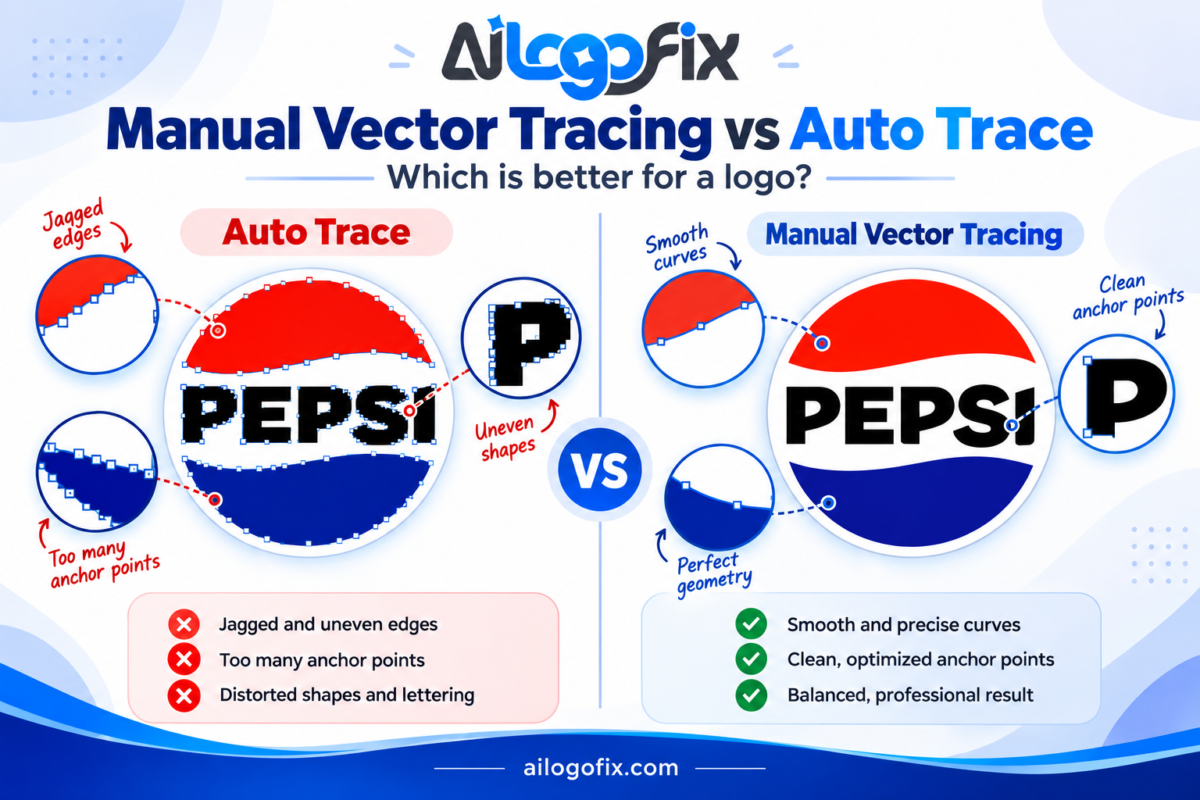
- Why Auto Trace Can Create Too Many Anchor Points
- Common Problems With Auto-Traced Logos
- When Auto Trace Is Actually a Good Choice
- When Manual Vector Tracing Is Better for a Logo
- Manual Vector Tracing and Brand Detail Preservation
- Does Saving a JPG as SVG or EPS Make It a Clean Vector?
- Which Method Produces Better Curves?
- Which Method Is Better for Editing Later?
- Use Auto Trace When…
- Choose Manual Vector Tracing When…
- How to Check the Quality of a Vectorized Logo
- Which Vector Formats Should You Receive?
- Frequently Asked Questions
- Final Verdict: Manual Vector Tracing vs Auto Trace
- Manual Vector Tracing FAQs
- Pro Tips for the Best Tracing Results
- When to Hire a Manual Tracing Specialist
- Vector Tracing Glossary
Both methods can turn raster artwork into vector paths, but they do not produce the same type of result. Automatic tracing is fast and useful in the right situation. Manual vector tracing takes more time, but it gives a designer much more control over curves, corners, lettering, spacing, negative space, and other details that make a logo look professional.
This guide explains how both methods work, where each one makes sense, and which method is usually better when brand accuracy matters.
What Is Manual Vector Tracing?
Manual vector tracing means a designer recreates the artwork by drawing clean vector paths instead of accepting an automatic conversion as the final result.
In software such as Adobe Illustrator, this usually means rebuilding shapes with tools such as the Pen Tool, shape tools, path operations, and careful node editing. The designer decides where anchor points should go, how curves should flow, how corners should meet, and how typography or custom lettering should be reconstructed.
The goal is not to copy every damaged pixel. It is to understand what the original logo was intended to look like and rebuild that design cleanly.
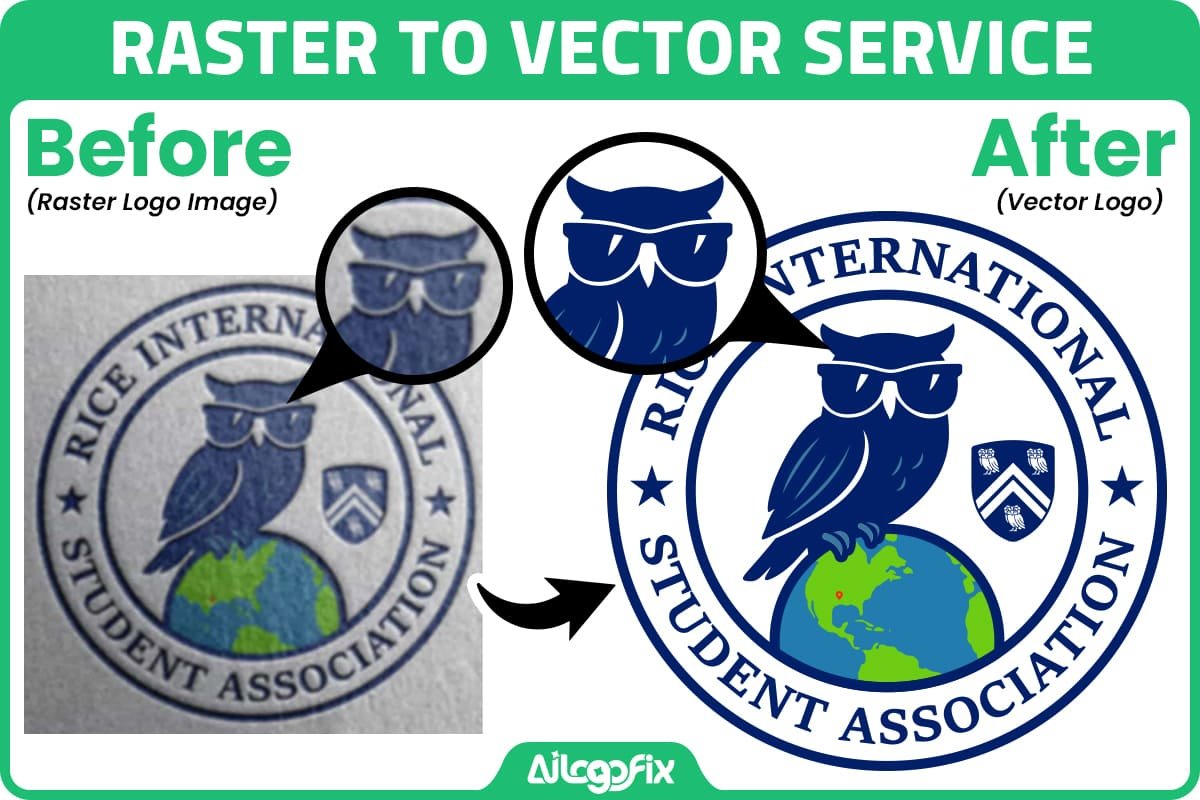
This is especially useful for blurry, compressed, distorted, scanned, AI-generated, or old logos where the raster image contains imperfections that should not become part of the new vector artwork.
What Is Auto Trace?
Auto trace, also called automatic vectorization, uses software to analyze a raster image and generate vector paths around visible colors, edges, and shapes.
Adobe Illustrator Image Trace is one well-known example. There are also many online tools that convert JPG or PNG images into SVG, EPS, or other vector-capable formats.
Auto trace can be very fast. For clean, simple, high-contrast artwork, it may produce a usable starting point in seconds.
The limitation is that the software sees pixels, not brand intent. It cannot reliably decide whether a rough edge is an intentional shape or a compression artifact, whether a slightly distorted letter should be corrected, or whether two curves were originally meant to be symmetrical.
Manual Vector Tracing vs Auto Trace: The Main Difference
The biggest difference is control.
Auto trace creates paths based on what it detects in the raster image. Manual tracing allows a designer to decide what the final path should actually be.
| Factor | Auto Trace | Manual Vector Tracing |
|---|---|---|
| Speed | Very fast | Slower |
| Control | Limited by algorithm/settings | Full designer control |
| Anchor points | May create many unnecessary points | Can be intentionally optimized |
| Curves | May follow pixel irregularities | Can be rebuilt smoothly |
| Typography | Often traces damaged letter edges | Can be matched or reconstructed |
| Brand accuracy | Depends heavily on source quality | Can preserve intended geometry |
| Editability | Can be difficult if paths are noisy | Usually cleaner and easier to edit |
| Best use | Simple, clean, low-stakes artwork | Professional logos and brand-critical artwork |
Why Auto Trace Can Create Too Many Anchor Points
A raster image is made from pixels. Even when an edge looks smooth to the eye, it may contain many tiny changes caused by anti-aliasing, JPEG compression, blur, scaling, or noise.
Automatic tracing may interpret those changes as real shape information. The result can be a path containing dozens or hundreds of points where a clean curve may only need a few carefully positioned anchors.
More anchor points do not automatically mean a better vector. Too many points can make curves harder to edit and can introduce small bumps or uneven transitions.
Manual tracing allows the designer to place points where they are structurally useful, producing cleaner geometry and easier future editing.
Common Problems With Auto-Traced Logos
Automatic tracing is not inherently bad, but a poor source image can create poor paths. Common problems include:
- Jagged or wavy edges.
- Too many anchor points.
- Distorted corners.
- Uneven circles or symmetrical shapes.
- Changed line thickness.
- Damaged negative spaces.
- Malformed letters.
- Incorrect spacing between letters or elements.
- Small holes or unwanted shapes created from compression noise.
- Color regions breaking into unnecessary pieces.
If the logo is already blurry, auto trace may simply convert the blur into vector paths instead of actually fixing the design.
For a related example, see our guide on turning a blurry raster logo into a high-quality vector file.
When Auto Trace Is Actually a Good Choice
Auto trace can be useful when the source is simple and clean.
Examples include a high-resolution black silhouette, a simple icon with strong contrast, basic artwork that only needs a rough vector starting point, or a low-stakes graphic where exact brand accuracy is not important.
It can also help a designer create an initial path that will later be cleaned manually.
The key is to inspect the result rather than assuming the first automatic output is finished.
When Manual Vector Tracing Is Better for a Logo
Manual tracing is usually the better choice when the logo contains details that must remain accurate.
1. Custom Typography or Lettering
Auto trace follows the visible pixel edge of the letters. If the original image is blurry, compressed, or distorted, the new vector letters may inherit those defects.
Manual work allows the lettering to be matched, reconstructed, or refined while preserving the original style.
2. Low-Resolution or Blurry Logos
A small JPG may contain very little reliable edge information. Automatic tracing can exaggerate those defects.
A designer can instead use the blurry image as a reference and rebuild the intended shapes.
3. Geometric or Symmetrical Marks
Circles, shields, stars, badges, mirrored symbols, and geometric marks should usually be constructed with controlled geometry rather than traced pixel by pixel.
Manual reconstruction can restore balance and symmetry that were lost in the raster image.
4. AI-Generated Logos
AI-generated logos often contain strange lettering, uneven curves, asymmetrical details, accidental shapes, or inconsistent spacing. Auto trace may preserve those flaws exactly.
Manual vectorization gives the designer a chance to fix the weak areas before creating the final vector artwork. If this is your situation, see our AI Generated Logo Fix Service.
5. Production-Critical Artwork
If the logo will be used for signage, screen printing, apparel, packaging, embroidery preparation, vinyl cutting, engraving, or large-format output, clean geometry matters.
Messy paths can create problems later when another designer or production vendor needs to edit, separate, simplify, or scale the artwork.
Manual Vector Tracing and Brand Detail Preservation
A good logo is more than its general shape. Small details contribute to recognition.
These can include letter spacing, custom character shapes, icon-to-wordmark proportions, border thickness, curve tension, negative spaces, alignment, color relationships, and intentional asymmetry.
This is why vectorization should not be treated as a simple file-format conversion.
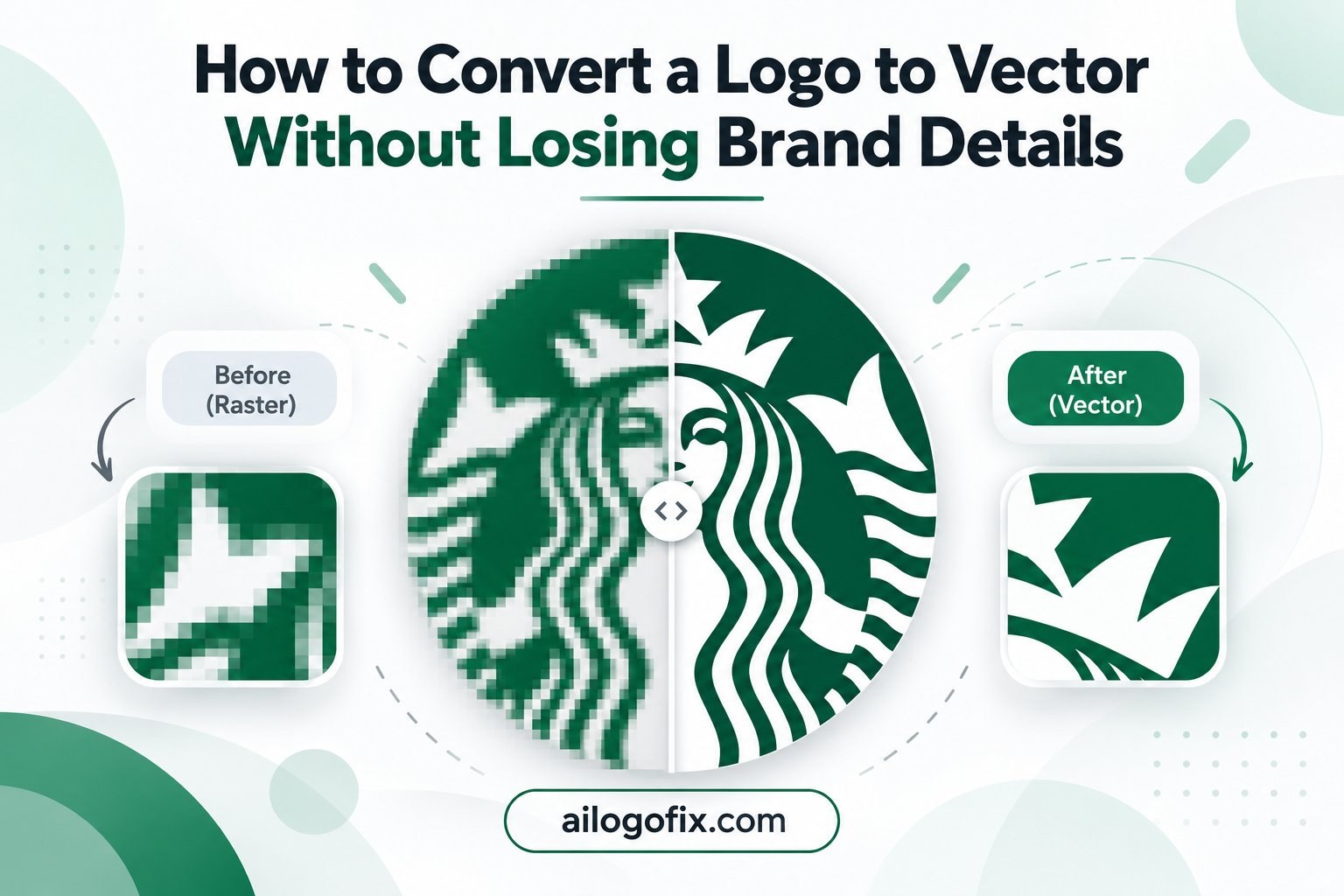
Our article How to Convert a Logo to Vector Without Losing Brand Details explains this preservation process in more detail.
Does Saving a JPG as SVG or EPS Make It a Clean Vector?
No.
A raster image can be placed inside SVG, EPS, PDF, or AI files without becoming clean vector paths. The extension alone does not prove that the artwork is truly vector.
A proper vector logo should contain editable paths, shapes, and objects rather than simply embedding the original bitmap.
If you are unsure about different logo file formats, read What Is a Vector File? AI, EPS, SVG & PDF Explained Simply.
Which Method Produces Better Curves?
For simple, clean artwork, a good auto-trace setting can produce acceptable curves. But for low-quality logos, manual tracing usually offers more control.
A designer can use fewer strategically placed anchor points, adjust Bézier handles, rebuild circular or geometric elements accurately, and remove unnecessary noise.
Fewer points are not automatically better in every situation, but clean vector construction generally avoids using more nodes than the shape actually needs.
Which Method Is Better for Editing Later?
Clean manual paths are generally easier to edit later because shapes are intentionally structured.
An auto-traced logo may technically be editable, but if a simple curve contains dozens of irregular nodes, making a small change can become unnecessarily difficult.
This matters if you later need to change the logo color, adjust the proportions, prepare a simplified version, or create print-production variants.
Use Auto Trace When…
- The source artwork is already very clean and high resolution.
- The design is simple and high contrast.
- You only need a rough vector starting point.
- Exact brand reproduction is not critical.
- You plan to inspect and manually clean the result afterward.
Choose Manual Vector Tracing When…
- Your logo is blurry, pixelated, compressed, scanned, or photographed.
- The design contains custom lettering or typography.
- The logo includes precise geometry, symmetry, or negative space.
- Auto trace creates jagged edges or too many nodes.
- The source contains AI-generated mistakes.
- The logo will be used for professional print or production.
- You need clean editable master artwork for future use.
How to Check the Quality of a Vectorized Logo
Before accepting the final vector file, inspect more than whether it opens in Illustrator.
- Zoom in and check whether curves are smooth.
- Look for unnecessary bumps or jagged edges.
- Check circles, corners, symmetry, and alignment.
- Inspect typography and letter spacing.
- Make sure negative spaces are preserved.
- Check whether the paths contain excessive unnecessary nodes.
- Compare the proportions with the original reference.
- Test the logo at both small and very large sizes.
- Confirm the artwork is made from real editable vector paths.
A professional vector should not only scale. It should also remain visually faithful and be practical to edit.
Which Vector Formats Should You Receive?
For professional logo work, it is useful to keep an editable master and several export formats.
- AI for Adobe Illustrator editing.
- EPS for many print and production workflows.
- SVG for scalable web and digital use. SVG is a web standard defined by the W3C.
- PDF for convenient sharing and many print workflows.
- PNG for transparent-background digital use.
- JPG for simple previews and general use.
Clean paths. Accurate details. A logo you can actually use.
If auto trace gives you jagged edges, too many anchor points, distorted lettering, or uneven shapes, our team can manually rebuild your logo into clean, scalable vector artwork while preserving the important brand details.
Message Us Send us your logo and our AiLogoFix team can review the file.
Frequently Asked Questions
Is manual vector tracing always better than auto trace?
No. Auto trace can work well for clean, simple, high-contrast artwork. Manual tracing becomes more valuable when accuracy, editability, typography, geometry, or brand details matter.
Can auto trace create a professional logo vector?
Sometimes. A clean source may trace well, but the result should still be inspected carefully. Difficult logos often need manual cleanup or complete redrawing.
Why does auto trace create so many anchor points?
It tries to follow tiny pixel variations along raster edges. Blur, compression, anti-aliasing, and noise can create additional path changes that become unnecessary vector nodes.
Can manual tracing fix a blurry logo?
Yes, in many cases. Instead of enlarging the blur, a designer can use the available image as a reference and reconstruct the intended shapes, text, spacing, and curves.
Is Image Trace in Illustrator bad?
No. It is a useful tool when used for the right artwork. The issue is treating every automatic result as finished professional vector artwork without reviewing or cleaning it.
What is the best method for a company logo?
If the source is clean and simple, auto trace may be enough after inspection. If the logo is blurry, detailed, typographic, geometric, AI-generated, or important to an established brand, manual vector tracing is usually the safer choice.
How do I know if my SVG is really vector?
Open it in vector-editing software and inspect the contents. You should see editable paths and shapes. An SVG can still contain an embedded raster image.
Final Verdict: Manual Vector Tracing vs Auto Trace
There is no need to treat automatic tracing as the enemy. It is fast and can be useful for simple artwork. But speed is not the same as precision.
For logos, the most important question is whether the final artwork preserves the intended brand details and remains clean enough for future editing and production.
If the source is simple and clear, auto trace can save time. If the logo contains important typography, geometry, custom shapes, low-resolution details, or visible flaws, manual vector tracing gives a designer much more control over the result.
If you want a clean professional vector rather than an unchecked automatic trace, visit our Raster to Vector Service or Message Us with your logo for a review.
Manual Vector Tracing FAQs
Straight answers about manual vector tracing and how it compares to auto-trace.
What exactly is manual vector tracing?
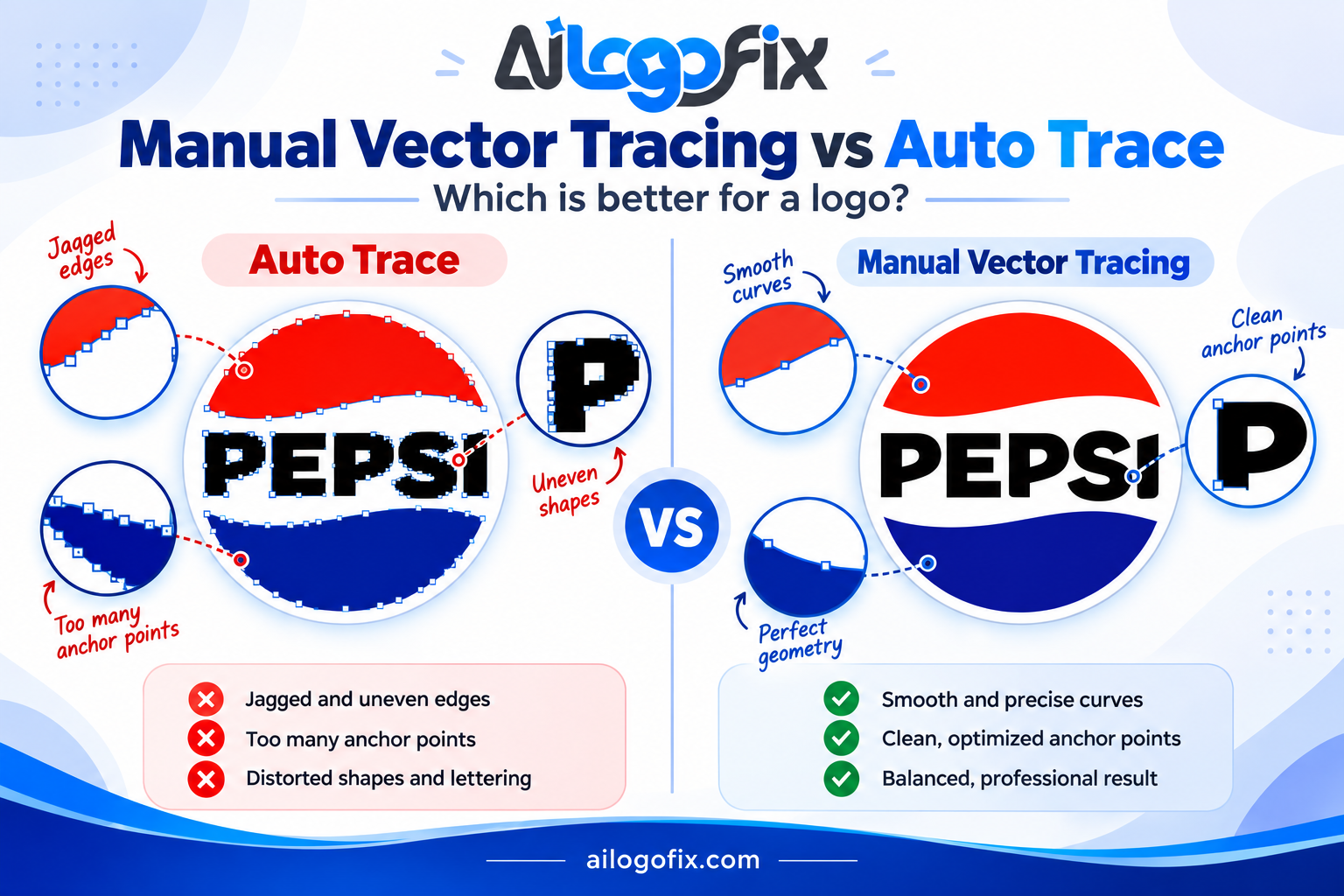
Manual vector tracing is the process of redrawing a raster image as clean vector paths by hand, using tools like the pen tool in Adobe Illustrator. A designer places the original image as a template and carefully recreates every curve, corner, and detail with precise anchor points. Unlike auto-trace, manual vector tracing gives the designer full control over path quality, curve smoothness, and detail accuracy. The result is a professional vector file with minimal anchor points and perfect geometry.
How long does manual vector tracing take?
Most manual vector tracing projects take 24 to 48 hours. Simple logos with clean shapes can be done in a day; complex illustrations with fine detail take longer. The time investment is what makes manual vector tracing superior, every curve gets individual attention. Rush delivery is available when deadlines are tight, though quality manual vector tracing should never be rushed beyond what the artwork requires.
Is manual vector tracing better than auto-trace?
For logos and brand assets, yes. Manual vector tracing produces cleaner paths, fewer anchor points, smoother curves, and more accurate details than any automated tool. Auto-trace works for rough drafts or simple shapes, but it struggles with small text, fine lines, and precise geometry. When your logo represents your business, manual vector tracing is the professional standard. The quality difference is visible at any size.
What should manual vector tracing cost?
Professional manual vector tracing typically costs $30 to $100 depending on complexity. Simple logos are at the lower end; detailed illustrations cost more. Be wary of $5 auto-trace services marketed as manual vector tracing, true hand-redrawing takes skilled time. The investment pays off in files that work everywhere: print, web, signage, and embroidery. Cheap tracing often needs expensive fixing later.
Can I do manual vector tracing myself?
Yes, if you learn the pen tool. Manual vector tracing requires practice with bezier curves, anchor point placement, and path optimization. Expect your first attempts to take hours and look rough. Professional designers have thousands of hours of manual vector tracing experience, which is why their results look effortless. For business-critical logos, hiring a specialist saves time and guarantees quality.
Pro Tips for the Best Tracing Results
Start with the best source possible. Even for manual vector tracing, a higher-resolution original helps the designer see fine details accurately. Scan printed materials at 600 DPI. The cleaner the reference, the more precise the manual vector tracing result.
Specify your fonts. If your logo contains text, tell the designer the font name or provide the font file. Manual vector tracing of lettering goes faster and looks better when the actual typeface is available rather than redrawn from scratch.
Request layered files. Ask for your manual vector tracing delivery with organized layers and named paths. This makes future edits dramatically easier and shows the work was done professionally, not auto-traced and dumped.
Check curves at large size. Zoom to 400% or print a large proof. Quality manual vector tracing stays smooth at any magnification. Wobbly curves reveal rushed or automated work. Learn more about how vector graphics work to evaluate what you receive.
When to Hire a Manual Tracing Specialist
Your logo is your brand. If the artwork represents your business, manual vector tracing by a professional is non-negotiable. Auto-trace artifacts in a client-facing logo signal amateur work.
You need small text preserved. Taglines, established dates, and fine lettering demand manual vector tracing. Auto-trace mangles small type beyond recognition.
The source is low quality. Blurry, pixelated, or damaged originals need a human eye. Manual vector tracing reconstructs what auto-trace can only guess at.
Need it done right? Our manual vector tracing service delivers clean, professional files, or message the team for a quote. The SVG standard ensures your traced logo works everywhere.
Vector Tracing Glossary
Anchor point: A control point defining where a vector path changes direction.
Bezier curve: A smooth curve controlled by anchor points and direction handles.
Auto-trace: Software that automatically converts raster pixels to vector paths.
Manual vector tracing: Hand-redrawing raster artwork as precise vector paths.
Path: A line or curve in vector artwork connecting anchor points.
Node: Another term for anchor point in vector editing.
Simplify: Reducing excess anchor points while preserving curve shape.
Outline: Converting text to vector paths so fonts are no longer needed.