
Your logo may look perfectly sharp on your phone or website, then suddenly come out blurry when printed on a business card, flyer, sticker, package, shirt, or sign. The reason is usually simple: the file that looked fine on screen does not contain enough usable detail for the size or printing method.
In This Guide
- Why Does My Logo Look Blurry When Printed?
- 6 Common Reasons Your Logo Prints Blurry
- Quick Diagnosis: What Is Causing the Blur?
- Does 300 DPI Fix a Blurry Logo?
- Why Vector Logos Stay Sharp
- When Re-Exporting Is Enough
- When the Logo Needs to Be Recreated
- Why the Same Logo May Print Fine on a Business Card but Fail on a Sign
- Can AI Upscaling Fix a Blurry Logo?
- What Should I Send My Printer?
- Before Your Next Print Order: Quick Checklist
- Frequently Asked Questions
- Final Answer
- Logo Blurry When Printed: FAQs
- 3 Costly Blurry Print Mistakes
- When to Hire a Designer for Print Logos
- Print Quality Glossary
If your logo looks blurry when printed, the most common causes are low resolution, enlarging a raster image too far, using a compressed JPG, exporting incorrectly, or sending a file that looks like a vector file but still contains raster artwork.
The good news is that the fix is usually straightforward once you know what is causing the problem.
Why Does My Logo Look Blurry When Printed?
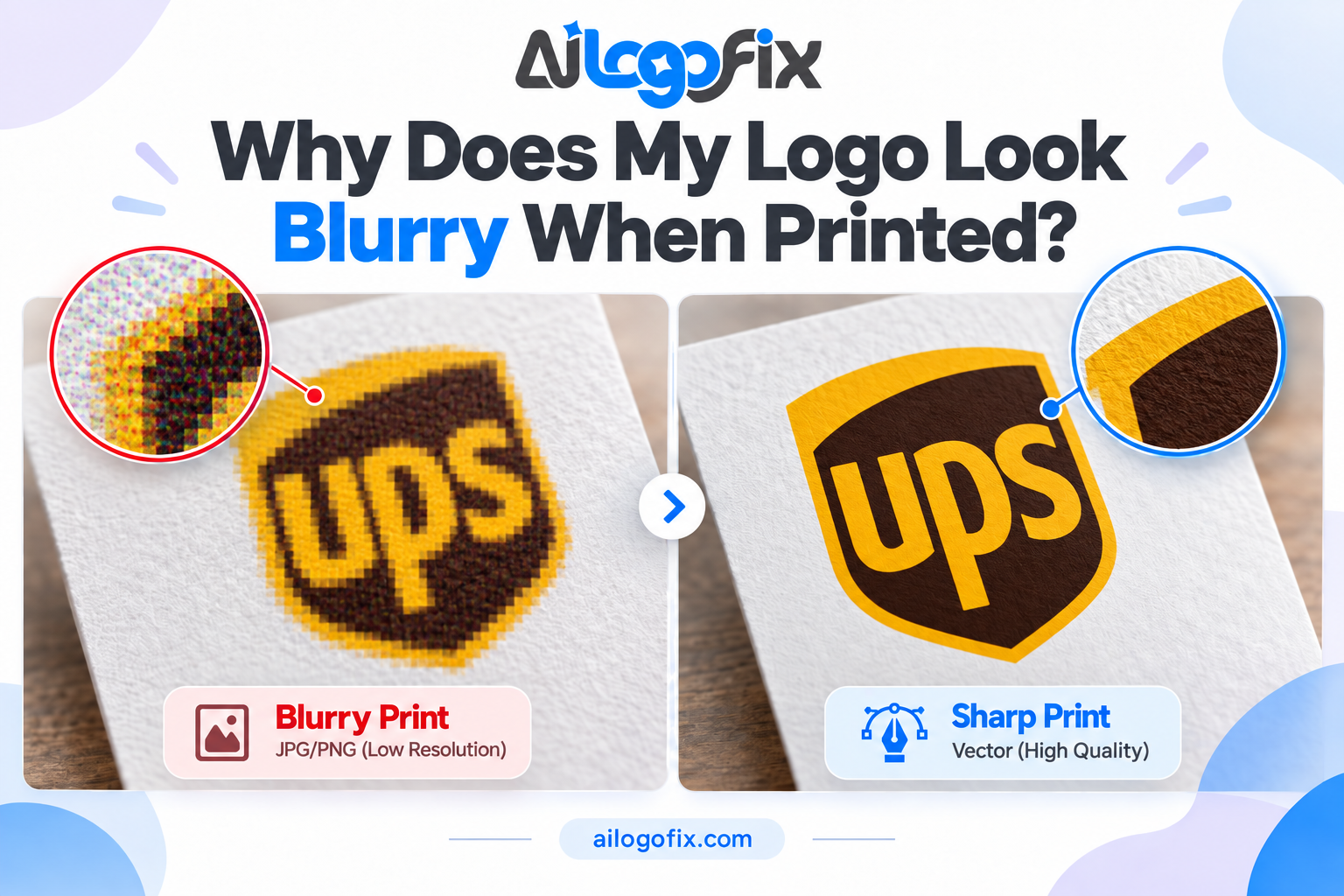
A logo becomes blurry in print when the source artwork does not have enough clean detail for the final output size.
On a screen, a small JPG or PNG may only appear a few hundred pixels wide, so it can look fine. In print, that same file may need to cover several inches—or several feet. Once the available pixels are stretched too far, the edges become soft, jagged, or visibly pixelated.
For logos, a clean vector master is usually the safest solution because vector artwork can be scaled without the same pixel limits as JPG or PNG files.
6 Common Reasons Your Logo Prints Blurry
1. The Logo File Is Too Small
A small raster image may work on a website but not in print. If the file only contains a limited number of pixels, enlarging it spreads those pixels over a larger physical area.
This is why a logo can look sharp in a browser but blurry on a poster or sign.
2. You Are Enlarging a JPG or PNG Too Much
JPG and PNG are raster formats. Raster files are made from pixels, so they have a practical size limit.
A transparent PNG can still become blurry if it is enlarged beyond its original resolution. Transparency does not make a PNG vector.
If you are unsure which logo format to use, see our guide to JPG vs PNG vs SVG for logos.
3. The JPG Is Heavily Compressed
JPG uses lossy compression. Around sharp logo edges and lettering, heavy compression can create fuzzy pixels, blocks, or halos.
Those artifacts may be barely noticeable on screen but become much easier to see in print.
4. You Used a Screenshot or Social-Media Download
Screenshots, social-media images, and copied website previews are often much smaller than the original artwork.
Platforms may also resize or compress uploaded images. If that reduced copy becomes your new “master” logo, print quality can suffer.
5. The File Was Exported or Downsampled Incorrectly
Sometimes the original artwork is good, but the exported PDF or raster file is not.
Export settings can reduce image quality, downsample raster content, or apply compression. If the logo becomes blurry only after creating a PDF or sending it through another application, the export workflow may be the problem.
6. Your “Vector File” Still Contains a Raster Image
A PDF, AI, EPS, or SVG filename does not guarantee that the logo inside is true vector artwork.
A low-resolution JPG can simply be placed inside one of those files. It will still become blurry when enlarged.
To understand the difference, read What Is a Vector File? AI, EPS, SVG & PDF Explained Simply.
Quick Diagnosis: What Is Causing the Blur?
| What You See | Likely Cause | Best Fix |
|---|---|---|
| Blocky or pixelated edges | Low-resolution raster file enlarged too far | Use a larger source or recreate as vector |
| Fuzzy halos around text | JPG compression | Use a better source or vector master |
| Looks fine small, blurry large | Not enough pixels for final size | Use vector artwork |
| PDF still prints blurry | Raster image embedded inside PDF | Inspect source artwork and vectorize if needed |
| Only one exported file looks bad | Export/downsampling issue | Re-export from the original master |
Does 300 DPI Fix a Blurry Logo?
Not by itself.
This is one of the most common misunderstandings in print design. Changing a file from 72 DPI to 300 DPI does not automatically create new detail.
What really matters is how many pixels the raster image contains and how large you plan to print it.
If a tiny image is simply assigned a higher DPI number, the software is only changing how those existing pixels are interpreted. It is not rebuilding missing edges, curves, or lettering. The result can still look blurry when printed at a large size.
For a complete explanation of print preparation, see What Is a Print-Ready Logo? Files, Colors and Resolution Explained.
Why Vector Logos Stay Sharp
Vector artwork is made from paths, curves, and shapes rather than a fixed grid of pixels.
That makes it much better suited to logos that need to be used at many different sizes. The same clean vector logo can be used on a business card and enlarged for signage without the raster pixelation that makes logos look blurry when printed.
Common vector-capable formats include AI, EPS, SVG, and PDF, although each of these formats can also contain raster content. The artwork itself must actually be vector.
When Re-Exporting Is Enough
You may not need to redraw the logo if:
- You still have the original AI, EPS, SVG, or vector PDF.
- The source artwork is clean and editable.
- Only one JPG, PNG, or PDF export is blurry.
- The problem happened during resizing or export.
In that situation, creating a fresh export from the original master may be all it takes to stop the logo from looking blurry when printed.
When the Logo Needs to Be Recreated
Vector redrawing is usually the better solution if your only source is:
- A small JPG or PNG.
- A screenshot.
- A logo downloaded from social media.
- A blurry scan.
- An old file with damaged lettering or rough edges.
- A raster image embedded inside a PDF or AI file.
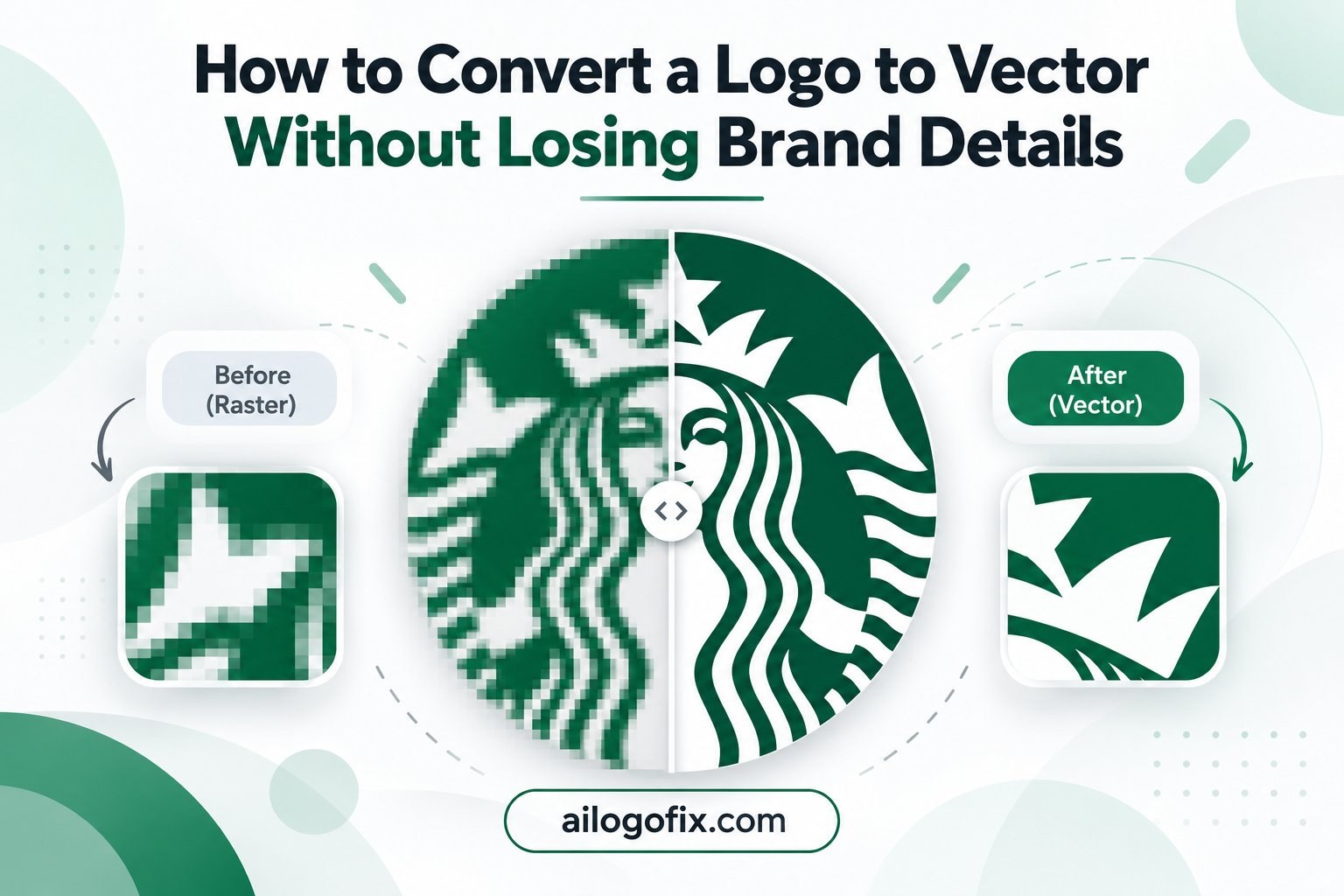
Manual vector redrawing rebuilds the intended shapes, curves, lettering, spacing, and proportions instead of simply enlarging the damaged pixels.
For more detail, see How to Convert a Logo to Vector Without Losing Brand Details.
Why the Same Logo May Print Fine on a Business Card but Fail on a Sign
Print size changes everything.
A raster file that contains enough pixels for a two-inch business-card logo may not have enough detail when enlarged to several feet for signage.
The same issue can appear with:
- Flyers and brochures.
- Labels and packaging.
- Stickers and decals.
- DTF and screen-printed apparel.
- Vehicle graphics.
- Large signs and banners.
This is why keeping a vector master is useful even if you also use JPG and PNG versions every day.
Can AI Upscaling Fix a Blurry Logo?
AI upscaling can sometimes make a raster image look cleaner or larger, but it is not the same as recreating the logo as true vector artwork.
Upscaling software predicts new pixels. For photographs, that can be useful. For logos, exact geometry, typography, spacing, and brand shapes often matter more than simply making the image larger.
If the source is badly pixelated and keeps coming out blurry when printed, manually rebuilding the logo can provide a cleaner and more editable long-term result.
What Should I Send My Printer?
Ask the printer what file format they prefer.
If you have a clean vector master, send the requested AI, EPS, PDF, or other compatible format. You can also include a PNG or JPG preview so the printer can quickly see how the logo should look.
If all you have is a low-resolution raster image, tell the printer before production rather than hoping it won’t come out blurry when printed.
Before Your Next Print Order: Quick Checklist
- Use the highest-quality original logo file you have.
- Avoid screenshots and social-media downloads.
- Do not enlarge small JPG or PNG files far beyond their original size.
- Check whether your PDF, AI, EPS, or SVG contains real vector paths.
- Ask the printer for their preferred format.
- Use a clean vector master for large-format or repeated professional use.
- Check a proof before approving a large print run.
Your logo shouldn’t get blurry when the print gets bigger.
If your only logo is a small JPG, PNG, screenshot, or blurry scan, AiLogoFix’s specialist team can help. With 4,000+ projects completed, we manually rebuild your logo into clean, scalable vector artwork — matching your brand’s exact shapes, lettering, and spacing. Every project includes unlimited revisions, so your logo prints sharp on everything from business cards to banners.
Message Us Send us your current logo and tell us where you need to print it.
Frequently Asked Questions
Why does my logo look blurry on a business card?
The source image may be too small, compressed, or exported at low quality. A clean vector logo or a properly sized high-resolution raster file usually solves the problem.
Why does my logo look fine on screen but blurry in print?
Screens often display the logo at a smaller size. Printing can require more detail because the image is reproduced physically at a larger size.
Why is my logo blurry when printed on a banner but fine on a business card?
The same file may contain enough pixels for a small business card but not enough for a large banner. When artwork is stretched too far, it can look blurry when printed at large sizes — a clean vector master avoids this problem.
Can I make a blurry logo 300 DPI?
You can change the resolution setting, but that does not create missing image detail. If the source is too small, you need a better source or a vector recreation.
Will saving my JPG as PDF make it print sharper?
No. If the PDF contains the same low-resolution JPG, the underlying quality has not changed.
What is the best file for printing a logo?
A clean vector master is usually the most flexible choice. The exact format depends on the printer, so ask whether they prefer AI, EPS, PDF, or another format.
Final Answer
If your logo looks blurry when printed, the problem is usually not the printer alone. It is often the source file, print size, compression, export settings, or the fact that the artwork is raster instead of true vector.
Use the best original file available, avoid screenshots, check the final print size, and use vector artwork so the logo never looks blurry when printed.
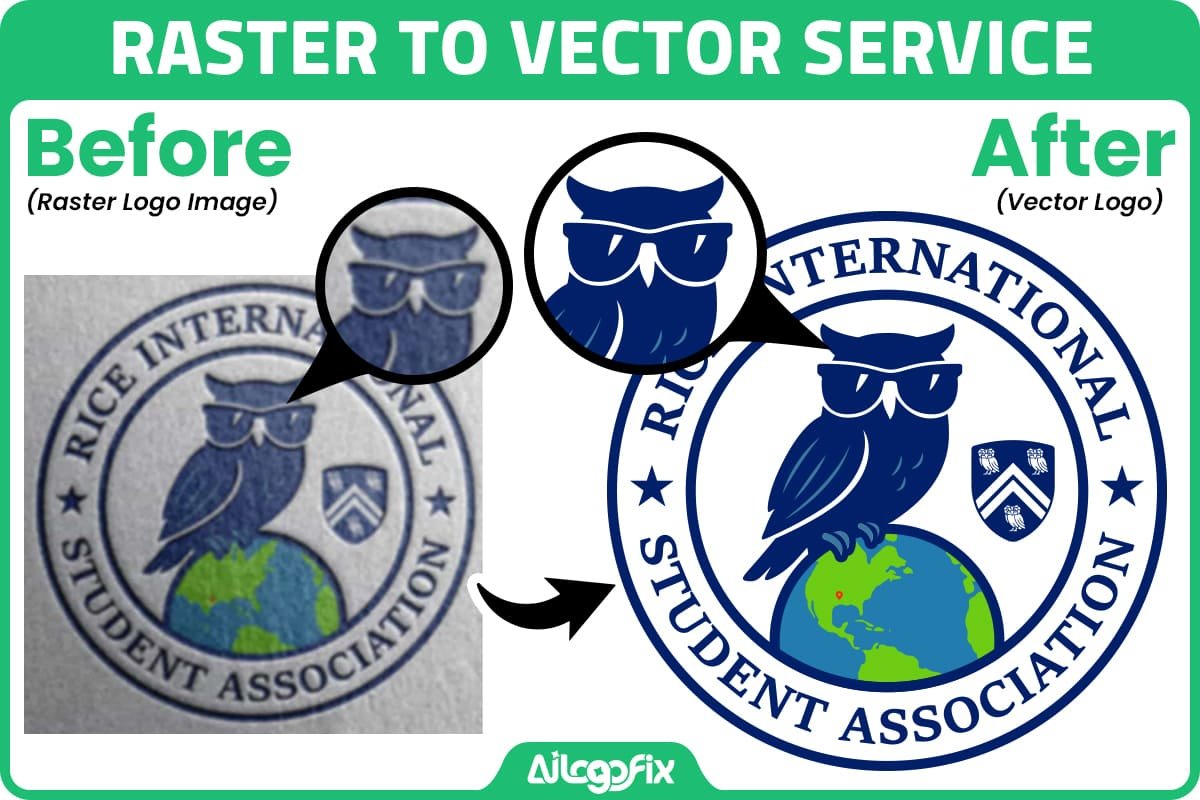
If your original files are gone or your only copy is blurry, visit our Raster to Vector Service or Message Us. We can help rebuild the logo into clean professional vector artwork for future print and design use.
Logo Blurry When Printed: FAQs
Every question about a logo blurry when printed, answered clearly.
Why is my logo blurry when printed but looks fine on screen?
Screens display at 72-150 PPI, while print needs 300 DPI. A logo blurry when printed usually means the file was designed for screens, not paper. What looks sharp on your monitor gets stretched across far more dots on paper, exposing every pixel. The fix for a logo blurry when printed is supplying a high-resolution or vector file, not just a bigger screen image.
Will 300 DPI fix a logo blurry when printed?
Only if the source has enough data. Exporting a 72 DPI web graphic at 300 DPI just spreads the same pixels thinner, your logo blurry when printed stays blurry. True 300 DPI means the image contains real detail at that resolution. If your logo blurry when printed comes from a small original, you need vector conversion, not a DPI setting change.
Can a vector file fix a logo blurry when printed?
Yes, permanently. Vector logos have no pixels to blur, so a logo blurry when printed becomes impossible once you convert. Convert your logo to vector and every future print, from business cards to billboards, renders razor-sharp. This is the single most reliable cure for a logo blurry when printed.
What file should I send my printer to avoid a logo blurry when printed?
Send a print-ready PDF with vector logo, 300 DPI images, and CMYK color. Printers reject RGB web files because they cause exactly the logo blurry when printed problem. Ask your printer for their spec sheet, then match it. A logo blurry when printed is almost always a file problem, not a printer problem.
Does paper type affect a logo blurry when printed?
Yes. Uncoated stock absorbs ink and softens edges, which can make a marginal file look like a logo blurry when printed disaster. Coated stock holds crisp detail. But paper only amplifies existing issues, a proper vector file prints sharp on any stock. If your logo blurry when printed appears on all papers, the file is the culprit.
Can AI upscaling fix a logo blurry when printed?
Sometimes, for photos. AI upscalers invent plausible detail, which can rescue a mildly soft image. But for logos with text and crisp geometry, upscaling a logo blurry when printed often produces wobbly, inaccurate results. Manual vector redrawing beats AI upscaling for any logo blurry when printed involving lettering or precise shapes.
How do I check my logo before printing to prevent a logo blurry when printed?
Print a desktop proof at 100% size. Zoom to 200% on screen and inspect edges. Check effective DPI in your layout app. These three checks catch nearly every logo blurry when printed case before it costs money. Understanding how DPI works helps you judge files correctly, and CMYK color basics prevent dull prints.
3 Costly Blurry Print Mistakes
1. Sending the web logo to print. That 200px header graphic was never meant for paper. Every logo blurry when printed story starts here. Fix: maintain separate print and web logo files, with the print version vector or 300 DPI.
2. Letting Word or Canva handle print. Office apps downsample images silently. A logo blurry when printed from Word usually means the app compressed your file. Fix: export print PDFs from proper design software with compression disabled.
3. Skipping the proof. Nobody checked before 5,000 copies ran. A logo blurry when printed at scale is an expensive lesson. Fix: always approve a hard proof for runs over 500 units.
When to Hire a Designer for Print Logos
Every print comes back soft. If your logo blurry when printed persists across printers, you need a proper vector rebuild, not another printer.
You only have a JPG. No print-ready file exists. A designer converts your logo blurry when printed source into true vector once, solving it forever.
Brand launch or reprint. Packaging, signage, stationery, get the file right before committing budget. Message our team and we will make your logo print-perfect.
Print Quality Glossary
DPI: Dots per inch, the print resolution measure. 300 DPI is standard.
Effective DPI: Actual resolution after scaling an image in layout.
Vector: Resolution-independent artwork using mathematical paths.
CMYK: The four process inks used in full-color printing.
Preflight: Technical check of files before printing.
Hard proof: A physical test print for approval.
Upsampling: Increasing pixel dimensions without adding real detail.
Print-ready PDF: A PDF meeting all printer specs: bleed, CMYK, embedded fonts.
Bottom line: A logo blurry when printed is never a mystery, it is always a file problem with a file solution. Keep a true vector master of your logo, export print PDFs at 300 DPI in CMYK, and proof before big runs. Do that, and the phrase logo blurry when printed will never describe your brand again. Need help getting there? Talk to our team, we fix blurry logos every day.